Upload a file and get a link
How uploading works, what the link looks like, and what the person you send it to sees when they open it.
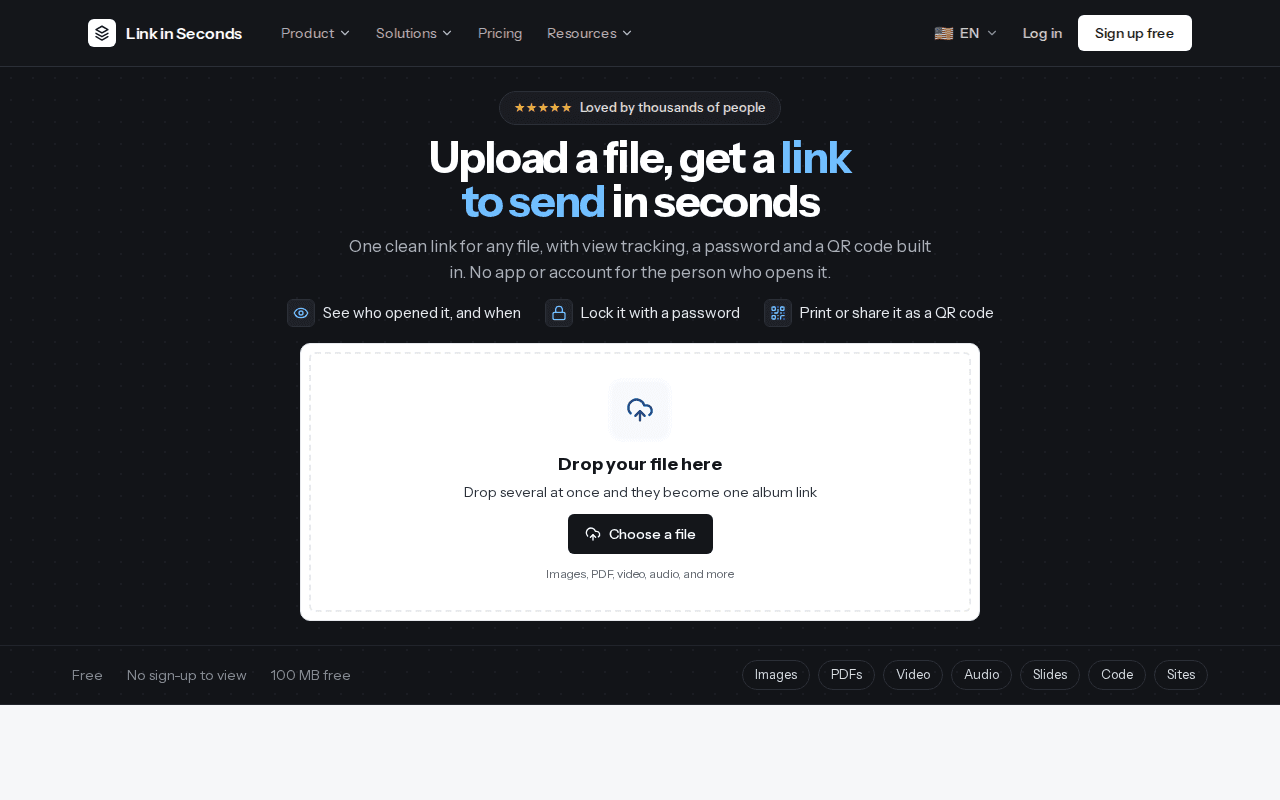
Uploading turns one file into one public link. You pick the file, give the link a name if you like, and publish. The person you send it to opens the link in any browser, with no app and no account.
Upload a file#
Open the uploader
Use the upload card on the homepage, or click Upload file on your dashboard.
Drop the file or choose it
Drag the file onto the card, or click Choose a file and pick it. iPhone photos in HEIC format are converted to JPEG in your browser before they upload.
Name your link (optional)
Type a name in Name your link. It becomes the end of the address, in lower case with dashes, so
Q3 Reportbecomes/p/q3-report. Leave it empty and the file name is used. If the name is already taken by another link, a number is added, such as/p/q3-report-2.Choose Downloadable or View-only
Downloadable shows a download button to visitors. View-only hides the download button and the file link. It stops casual saving, but it can not stop screenshots.
Publish
Click the publish button. If you are signed out, you are asked to sign in with Google first. Your file stays in your browser until you do, then it publishes.
What your link looks like#
Every file link has the form https://linkinseconds.com/p/your-link-name. It is a normal web address, so you can paste it in an email, a chat, a document or a bio. Album links use /b/ and a short code instead.
On Pro you can also choose the exact address yourself, with no number added, from the link's settings. See Link settings.
Upload size
| Plan | Largest single file |
|---|---|
| Free | 100 MB |
| Pro | 200 MB |
| Lifetime | 250 MB |
Total storage and link limits are on Plans and limits.
What the viewer sees#
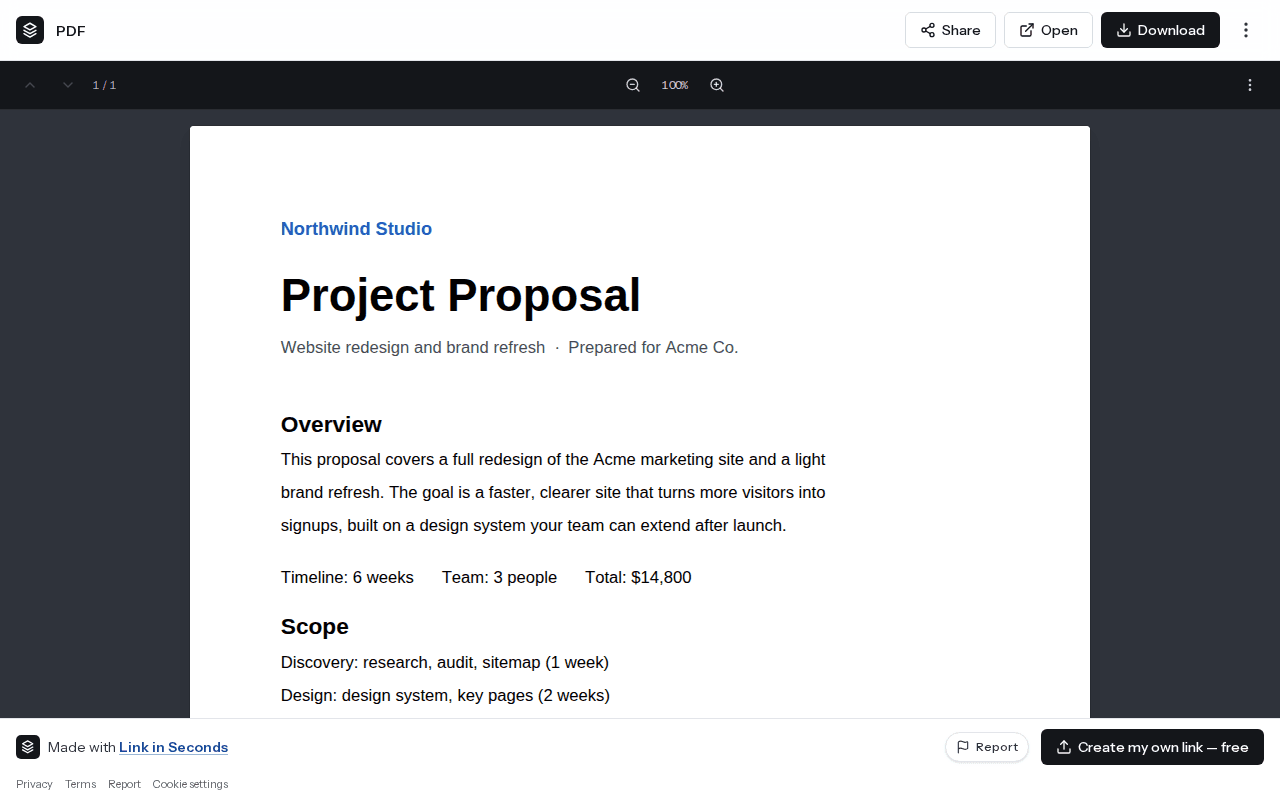
When someone opens your link, the file shows right in their browser. They do not need to sign in or install anything. A bar at the top shows the file name and size, with Share, Open and Download buttons. Download is hidden when the link is view-only.
- Images open in a viewer with zoom.
- PDFs open in a page viewer with page controls and zoom.
- Video and audio play in the page.
- Word (DOCX) and Excel files are shown in the browser.
- Text, Markdown, CSV, JSON and code files are shown as readable text.
- HTML files are shown as a web page, inside a safe sandbox.
- ZIP files and a few other types get a download card instead of a preview.
The details for each type are on Supported file types.
Held for review
Your links on the dashboard#
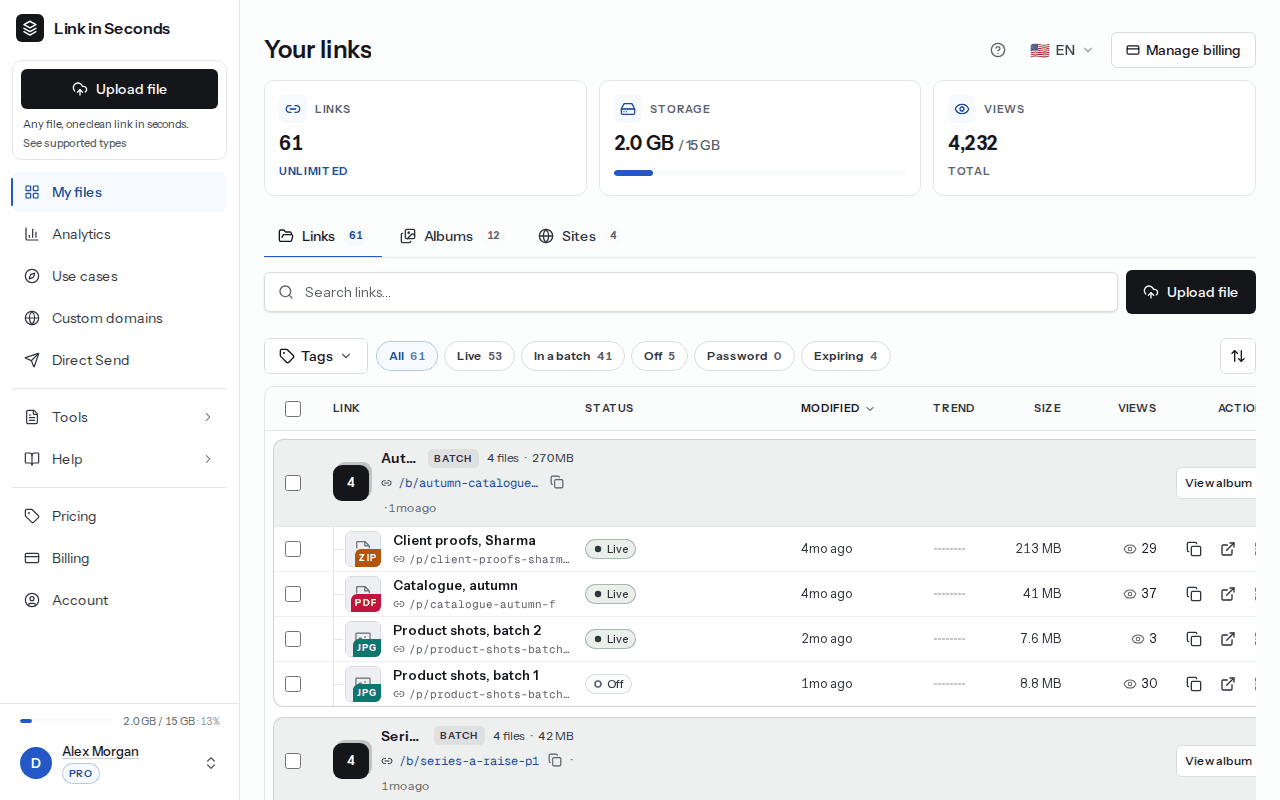
Every link you publish appears on your dashboard under Your links, in the Links tab. Each row shows the name, address, status, size and view count. From a row you can copy the link, open it, or open the More actions menu for the QR code, sharing, analytics, renaming, link settings and delete.
Upload several files at once#
Drop or choose more than one file and they become one album. You give the album a name, each file gets its own link, and the album gets one link that shows them all. See Albums.
Related#
Last updated 4 October 2026. Something unclear or missing? Tell us.