Link settings and controls
Password, expiry date, view-only mode, view limit, custom link name, email gate and turning a link off.
Every link you publish has its own settings. You can turn it off, lock it with a password, give it an end date, let it be opened only a few times, ask viewers for their email, and more. This page walks through each control and tells you which ones need Pro.
Open Link settings#
Find the link
Go to My files in your dashboard. Your links are listed under the Links tab.
Open the menu
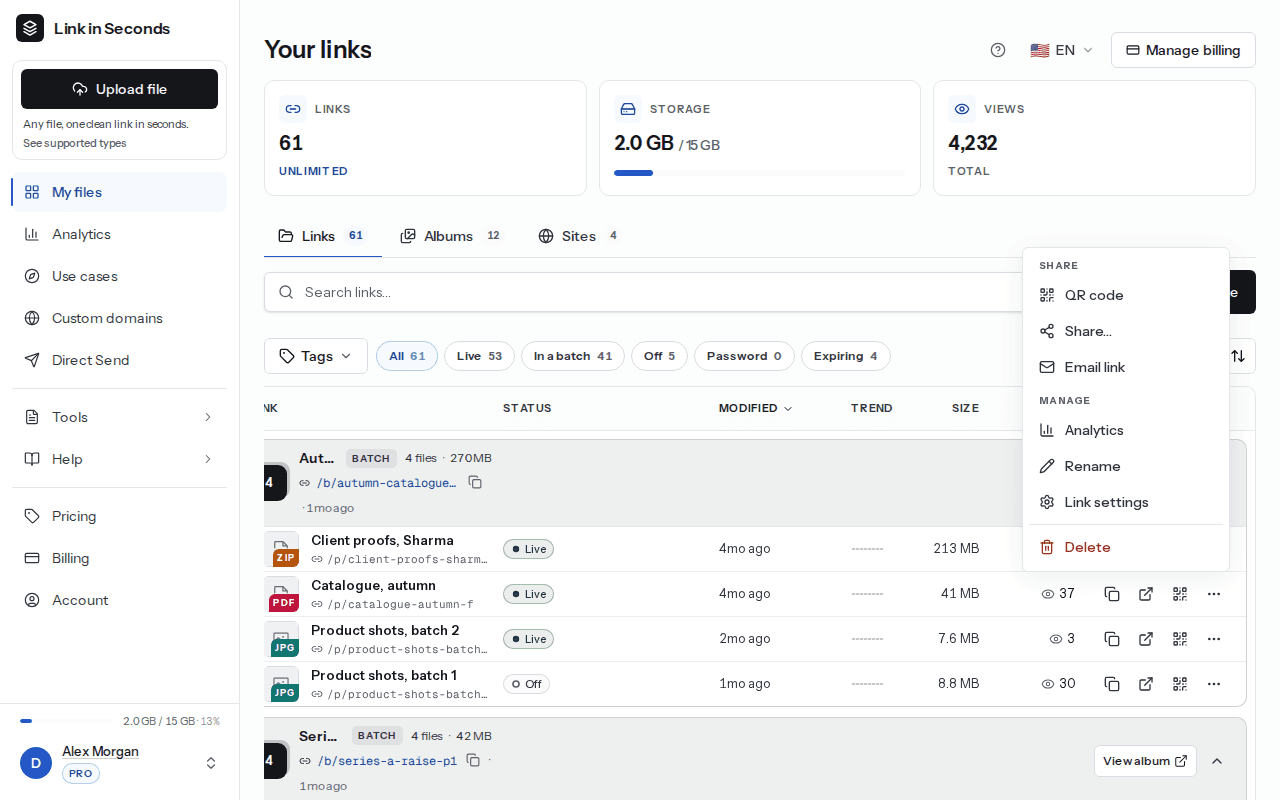
Click the ... button at the end of the link's row (its label is "More actions"). The menu is grouped into Share (QR code, Share..., Email link) and Manage (Analytics, Rename, Link settings), with Delete at the bottom.
Choose Link settings
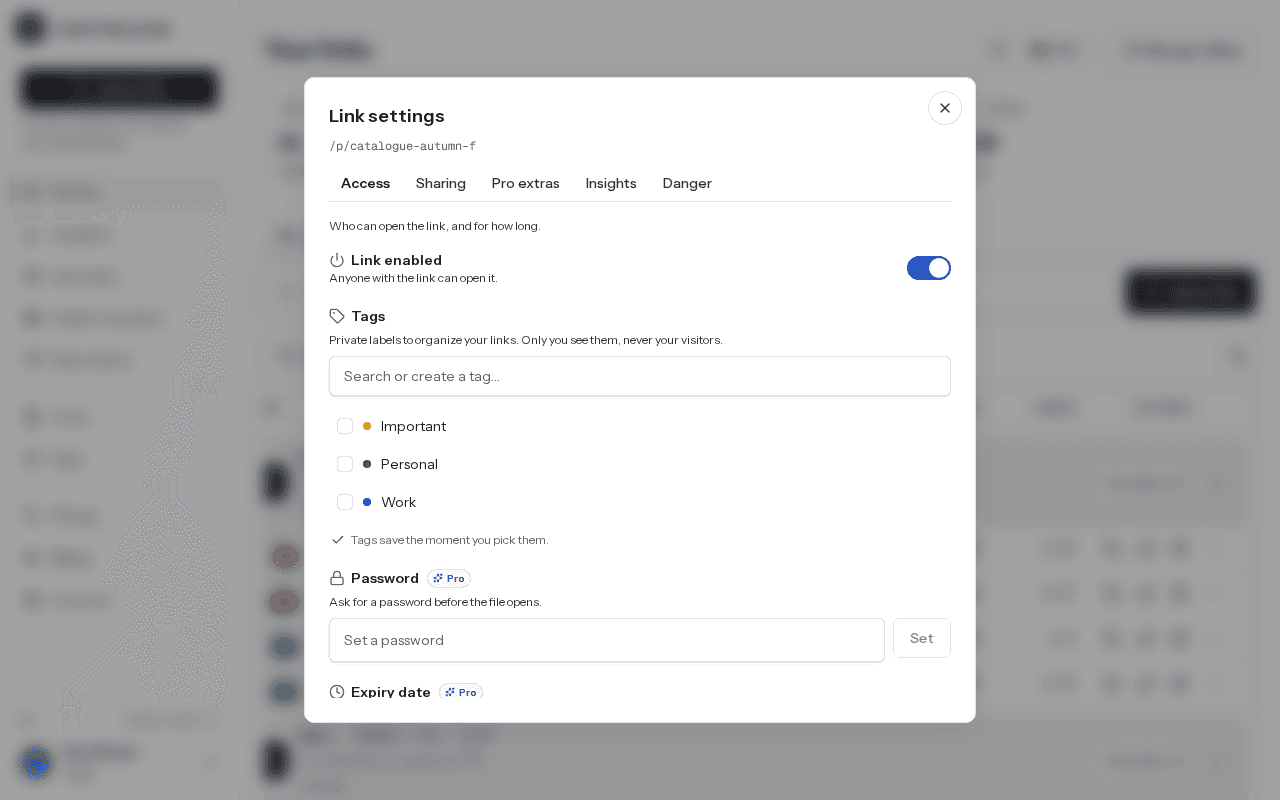
Click Link settings. A window opens with the link's address at the top and five tabs: Access, Sharing, Pro extras, Insights and Danger.
How saving works
Access tab#
Who can open the link, and for how long.
Link enabled
Turn the link off for everyone without deleting it. While it is off, the page and the file both stop loading. Turn it back on and the same link works again. Free on every plan.
Tags
Private labels for organizing your own links, like "Work" or "Personal". Only you see them, never your visitors. Pick a tag and it saves right away. Free accounts can create up to 5 tags; Pro has no tag limit.
Password (Pro)
Visitors must enter the password before the file opens. It needs at least 4 characters. Click Set to save it, or Remove to take it off. If you change the password, people who unlocked the link with the old one have to enter the new one.
Expiry date (Pro)
Pick a date and time, then click Save. From that moment the link stops working. The date must be in the future. Click Clear to remove it.
Self-destruct after views (Pro)
Set how many times the link can be opened. Once it reaches that number it stops working. Use the quick buttons Once, 5 views or 25 views, or type your own number. "Once" makes it a one-time link. Click Clear to remove the limit.
Sharing tab#
How the link looks and behaves, and where it lives.
Allow download
On by default. Turn it off to make the link view-only: visitors can still see the file, but the download and open buttons are hidden, and a direct download request is refused. Free on every plan.
Ask for the viewer's email (Pro)
Visitors type their email before the file shows. You can see who left an email on the link's analytics page and export the list. See Views and analytics.
Social share preview
Set the title (up to 100 characters) and description (up to 200 characters) people see when your link is shared on social media, Slack or iMessage. Leave the title empty to use the link's title. Click Save preview. Free on every plan.
Embed on your site
Copy a ready-made <iframe> snippet and paste it into any website to show the file in place. Click Copy. Free on every plan.
Custom domain (Pro)
Set up custom domain takes you to the Custom domains page with this link already picked. See Custom domains.
Custom link (Pro)
Choose your own link name, so /p/x7k2a9 becomes something like /p/my-resume. Names are lowercase letters, numbers and dashes, at least 3 characters and at most 60. Some names are reserved, and a name someone else already uses is refused.
Renaming changes the address
Replace the file
Choose new file swaps in a new file and keeps this exact link, its QR code and its view count. Free on every plan. See Replace a file and keep the link.
Version history (Pro)
Each replace keeps the previous file. Restore one to make it live again.
Pro extras tab#
Know when the link is opened, protect the preview, and collect feedback. All three are Pro.
- Email me when viewed. You get an email when someone opens the link, at most once an hour per link.
- Watermark the PDF preview. Each PDF page is stamped with the viewer's email (if they gave one) or "Confidential", plus the date. It discourages sharing; it can't stop screenshots.
- Feedback & comments. Viewers can leave comments on the shared page, and you are emailed each one.
Insights tab#
Shows the link's total Views and Downloads, with an Open full analytics button for the charts and breakdowns.
Danger tab#
Delete link removes the file and its public link for good. You are asked to confirm first. Anyone who opens the link afterwards gets a "not found" page. This can't be undone. A link that is under review, or a video that is still being processed, can't be deleted until that finishes.
All controls at a glance#
| Control | What it does | Plan |
|---|---|---|
| Link enabled | Turns the link on or off for everyone | Free |
| Tags | Private labels to organize your links | Free (up to 5 tags), Pro unlimited |
| Password | Asks for a password before the file opens | Pro |
| Expiry date | Stops the link at a date and time | Pro |
| Self-destruct after views | Stops the link after a set number of opens | Pro |
| Allow download | Off makes the link view-only | Free |
| Ask for the viewer's email | Collects an email before the file shows | Pro |
| Social share preview | Custom title and description for shared links | Free |
| Embed on your site | An iframe snippet to show the file on another site | Free |
| Custom domain | Opens the link on your own domain | Pro |
| Custom link | Your own link name instead of the generated one | Pro |
| Replace the file | New file, same link, QR code and views | Free |
| Version history | Restore an earlier file | Pro |
| Email me when viewed | An email when someone opens the link | Pro |
| Watermark the PDF preview | Stamps the viewer and date on PDF pages | Pro |
| Feedback & comments | Lets viewers comment on the page | Pro |
| Delete link | Removes the file and link for good | Free |
On a free account, Pro controls still show up with a Pro badge and a short preview of what they do, so you can see what upgrading unlocks. See Pricing.
Controls are enforced on our server#
These settings are not just hidden buttons. Every time someone opens the page or loads the file, our server checks the link first: is it turned off, past its expiry date, out of views, password protected, or asking for an email? If so, the visitor gets the lock screen or a "not found" page instead of the file.
That means a change applies to everyone right away, including people who already have the URL, a bookmark, or the direct file address. You don't need to send a new link. The plan check for Pro controls also happens on the server, when you save a setting.
Private files
Related#
Last updated 4 October 2026. Something unclear or missing? Tell us.