Quickstart: share your first file
Upload a file, get a public link and send it, in under a minute. The fastest path through Link in Seconds.
This page takes you from a file on your computer to a link you can send, in about a minute. You need a Google account to publish. The person you send the link to needs nothing: it opens in their browser.
1Pick a file
Drop it on the upload card
2Sign in
Continue with Google
3We publish it
Checked and stored
4Share the link
Copy, QR code or share
Share your first file#
Go to linkinseconds.com
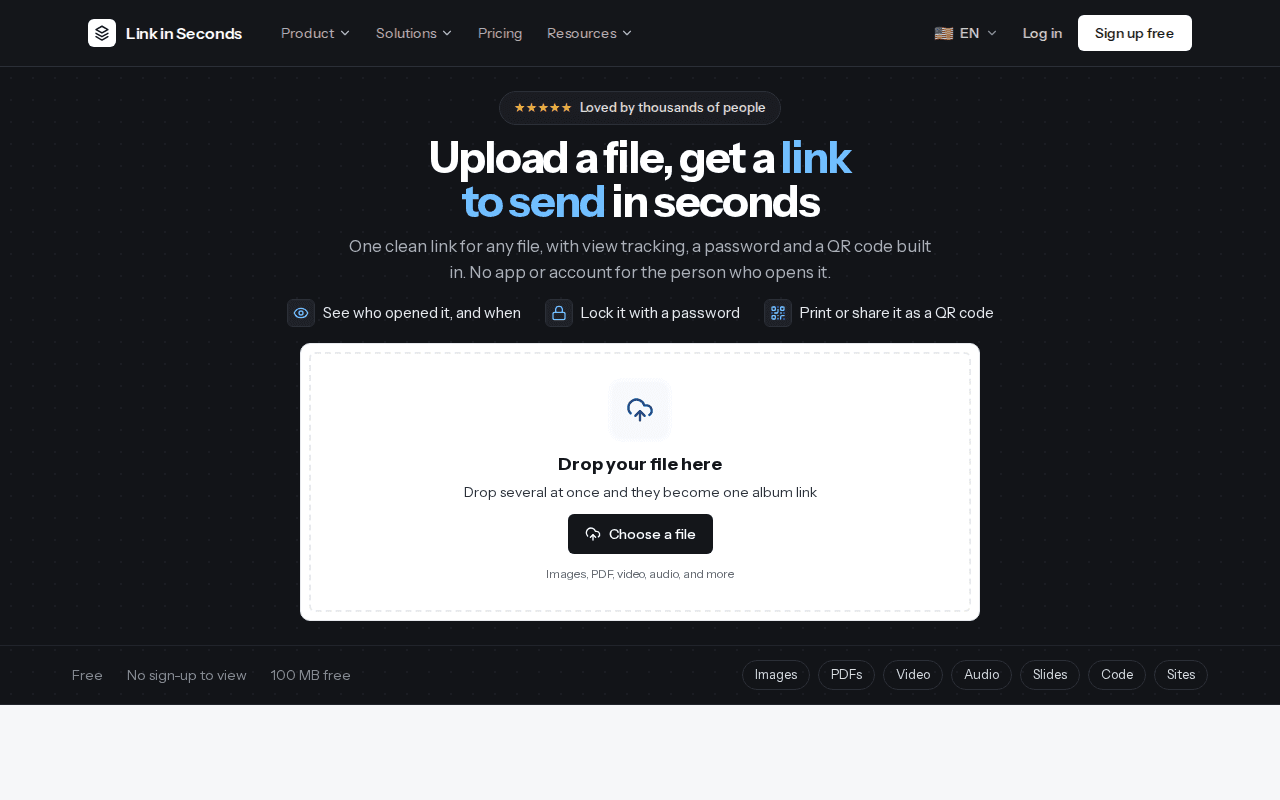
Open linkinseconds.com. The upload card is right at the top of the page.
Drop your file on the upload card
Drag a file onto the card where it says Drop your file here, or click Choose a file. You can share PDFs, images, video, audio, Office documents, text and code files, HTML pages and ZIP archives. See Supported file types for the full list.
Once a file is picked, you can type a name in Name your link. The card shows a preview of the address, for example
linkinseconds.com/p/my-resume. You can also choose Downloadable or View-only. Then click Publish your file.Sign in with Google
If you are not signed in yet, the card asks you to Sign in to publish your link. Click Continue with Google.
Your file is not uploaded at this point. It is held in your browser on this device while you sign in. Nothing is sent to our servers until you are signed in.
Your file publishes automatically
After sign-in you land on your dashboard, and the file you picked publishes on its own through your account. On the Free plan this works as long as you are within 20 live links and the file is up to 100 MB. If the file is bigger than the Free plan allows, you are offered Pro instead, and the file stays on your device.
Copy and share your link
When it is done you see Your link is ready, with the link, a copy button, share buttons (WhatsApp, LinkedIn, X, Telegram and email) and a QR code. Click Download QR to save the QR code as an image you can print or put on a slide.
Find it again in your dashboard
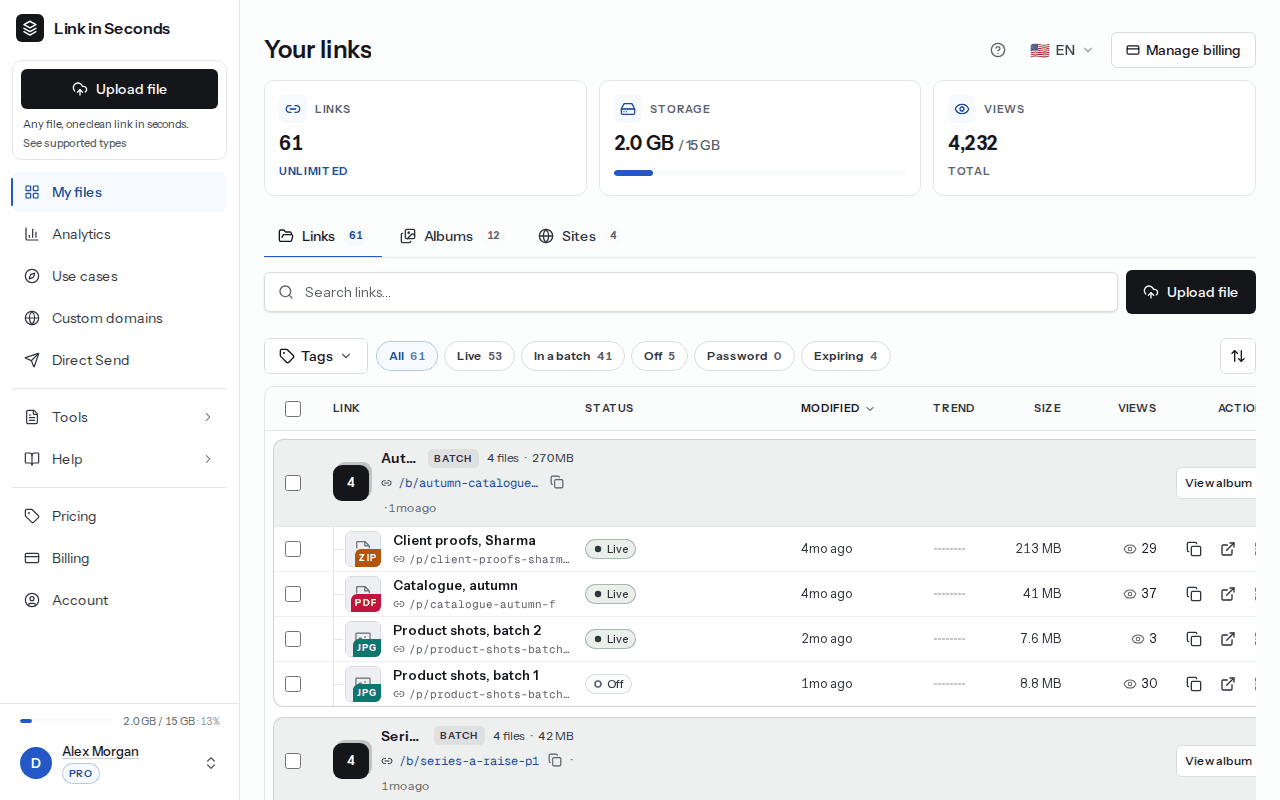
Every link you publish is listed on your dashboard under Your links. From there you can copy it again, see its views, open its settings or upload more files with Upload file.
Using private browsing?
Good to know#
- The link is public: anyone who has the URL can open it. Only share files you have the right to share.
- Links on the Free plan do not expire.
- Drop several files at once and they become one album link. See Albums.
- Every upload gets an automatic safety check. Now and then a file is held for a short review before it goes live. See Safety and reporting.
Next steps#
Last updated 4 October 2026. Something unclear or missing? Tell us.