Authentication and API keys
Create an API key, send it as a Bearer token, keep it safe and delete it when you no longer need it.
Every API and MCP request is authenticated with an API key sent as a Bearer token. Keys belong to your account: whatever you publish with one counts toward your plan, just like an upload on the website.
Create a key#
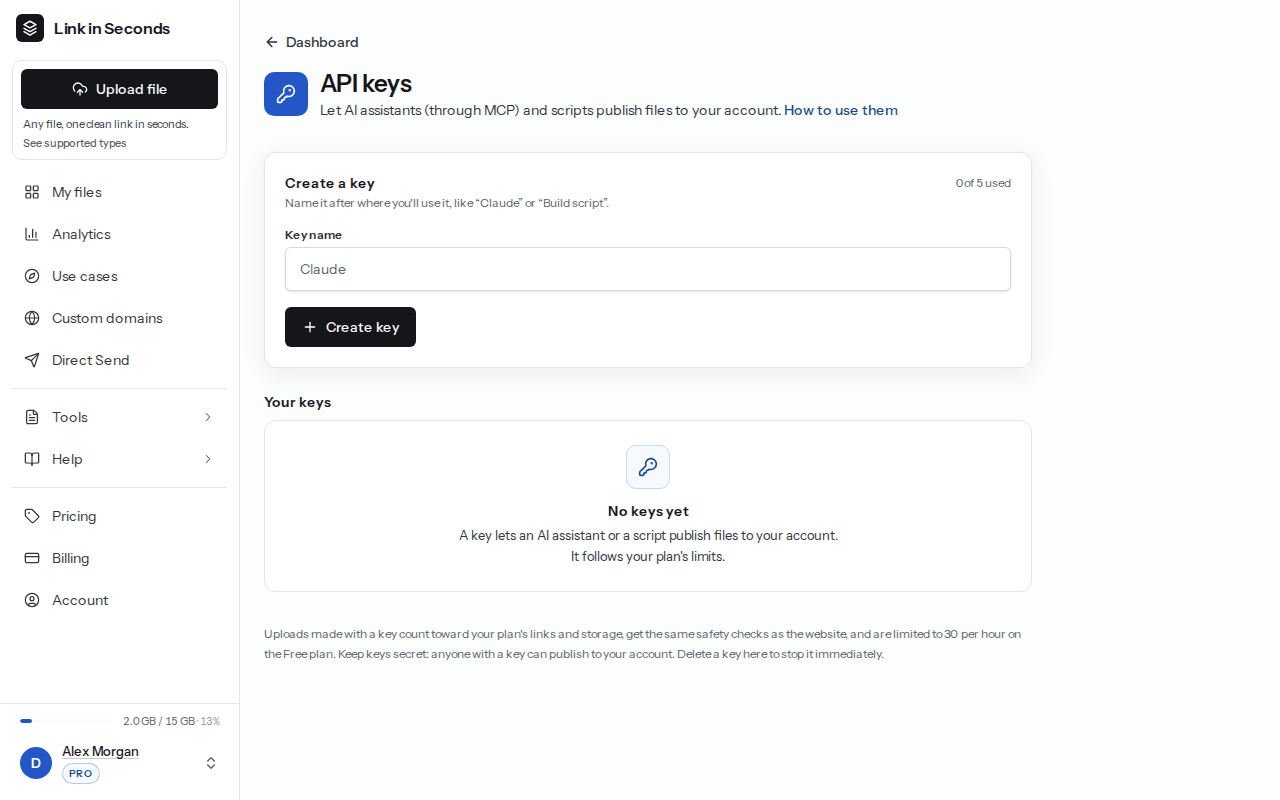
Open the API keys page
Sign in and go to Dashboard → API keys (also in the account menu at the bottom of the sidebar).
Name it and create it
Name the key after where you will use it, such as “Claude” or “Build script”, then click Create key. You can hold up to 5 keys at once.
Copy it now
The key starts with
lis_and is shown once. We only store a one-way hash of it, so if you lose it, delete it and create a new one.
Send it with every request#
Put the key in the Authorization header. Requests without it, or with a revoked key, get 401 Unauthorized.
curl https://linkinseconds.com/api/v1/links \
  -H "Authorization: Bearer $LIS_API_KEY"
Keep it safe#
- Store it in an environment variable or a secret manager, never in source code or a public repo.
- Use one key per tool or machine, so you can delete one without breaking the rest.
- Never put a key in a URL or share it in a chat. Anyone with the key can publish to your account.
export LIS_API_KEY="lis_..."Think a key leaked?
Browser sessions are not accepted#
The API and the MCP server only accept an API key, never your website login. That means another website can not make your logged-in browser call the API on your behalf.
Last updated 4 October 2026. Something unclear or missing? Tell us.