PDF tools
Merge, split, rotate, reorder, watermark and convert PDFs in your browser. Files never leave your device.
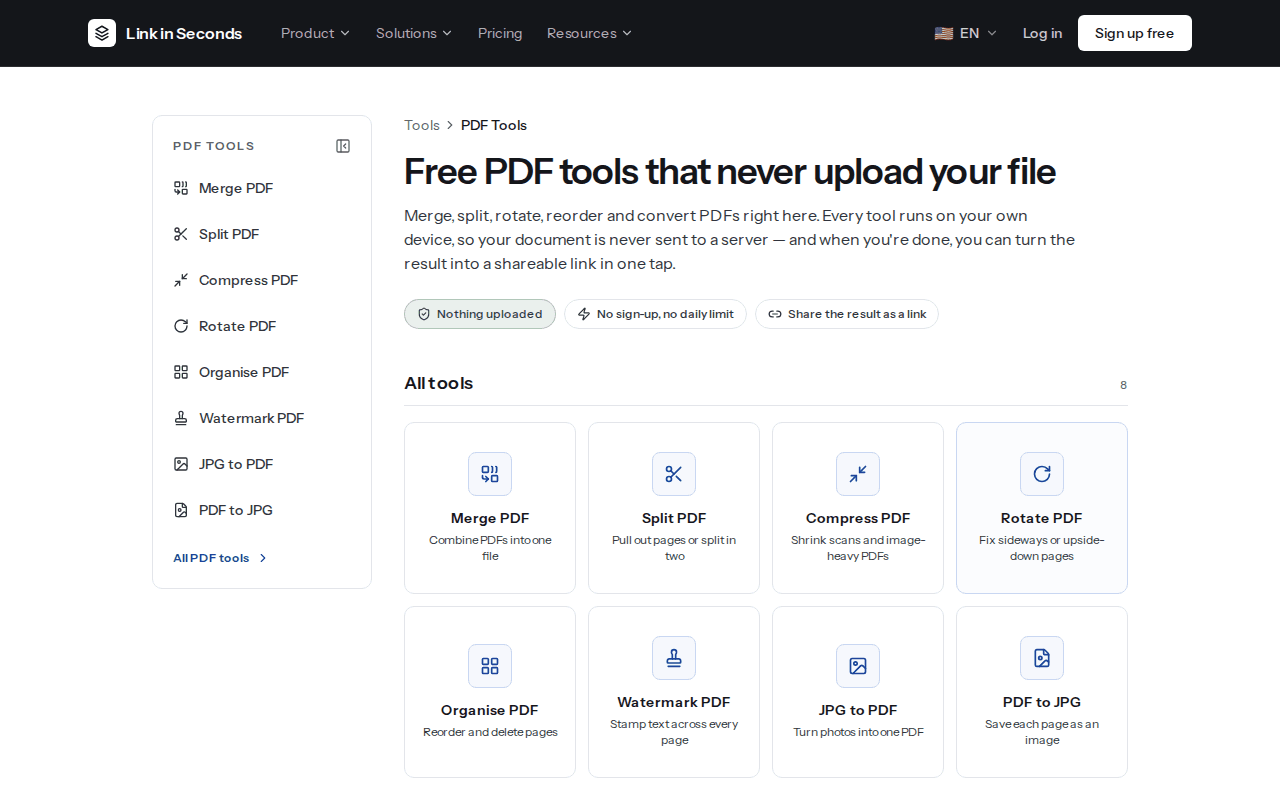
Link in Seconds has 8 free PDF tools. Every one of them runs inside your browser, on your own device. Your document is never sent to a server to be processed, and you do not need an account to use them.
All tools#
| Tool | What it does |
|---|---|
| Merge PDF | Merge PDFs into one document in your browser. Drag to reorder, merge in seconds, then download it or turn it into a shareable link. Files never leave your device. |
| Split PDF | Split one PDF into several, or pull out just the pages you need, type a range like 1-3, 7. Runs entirely in your browser, so the document is never uploaded anywhere. |
| Compress PDF | Compress a PDF in your browser. Keep quality is lossless; Strong turns pages into images for big wins on scans. Text PDFs barely shrink. Nothing is uploaded. |
| Rotate PDF | Turn every page, or just the ones that came out sideways from a scanner, and save the rotation permanently. Free, no sign-up, and the file stays on your device. |
| Organise PDF | See every page as a thumbnail, drag them into the right order, and delete the ones you don't want. Everything happens in your browser, nothing is uploaded. |
| Watermark PDF | Stamp DRAFT, CONFIDENTIAL or any text diagonally across every page before you send a document out. Free, in your browser, with nothing uploaded to a server. |
| JPG to PDF | Turn photos or scans into one PDF, one image per page, in the order you choose. Ideal for sending a photographed document as a proper file. Runs in your browser. |
| PDF to JPG | Turn each page of a PDF into a JPG you can paste into a slide, a chat or a listing. Pick the pages and the quality; the conversion happens on your own device. |
You can also open any tool from the PDF tools hub, from the Tools group in the dashboard sidebar, or from the site menu.
How to use a tool#
Pick your file
Open a tool and drop your PDF (or images, for JPG to PDF) on the picker, or tap to browse. Merge PDF takes several PDFs at once.
Choose your options
Each tool has only the options it needs. For example, Split PDF takes a page range such as 1-3, 7, Compress PDF offers Keep quality or Strong, and Watermark PDF asks for the text to stamp.
Download or share
When the result is ready, click Download. If a tool made several files, Download all as zip saves them in one go. To send it to someone, click Share it as a link (or Share them as one link for several files).
Your files stay on your device#
- The file is read and changed by your browser. No copy is uploaded while you use a tool.
- There is no sign-up and no daily limit.
- Share it as a link carries the result to the upload card on the home page. It is only uploaded when you publish it there, like any other upload, and then the normal plan limits apply.
Files up to 40 MB
Good to know#
Compress PDF
Keep quality is lossless and keeps text sharp, but a text-only PDF barely shrinks. Strong turns each page into an image, which makes big savings on scans and image-heavy files. The text in a Strong result is no longer selectable, and Strong has a page limit because every page is redrawn on your device.
JPG to PDF
Add JPG or PNG images, one image per page, in the order you choose. iPhone HEIC photos are not supported: export them as JPG from the Photos app first.
Limiting who can open it
These tools change the pages of a PDF. If you want to control who can open the file, upload it and add a password to the link instead (a Pro feature). See Link settings.
Related#
Last updated 4 October 2026. Something unclear or missing? Tell us.