Albums: many files, one link
Upload several files at once and share them as one album link with a gallery view and a single ZIP download.
An album puts many files behind one link. Send one address and the people you share it with see every file in a gallery, can open any of them, and can save them all as one ZIP. Each file in the album also keeps its own link.
Create an album by uploading several files#
Drop several files at once
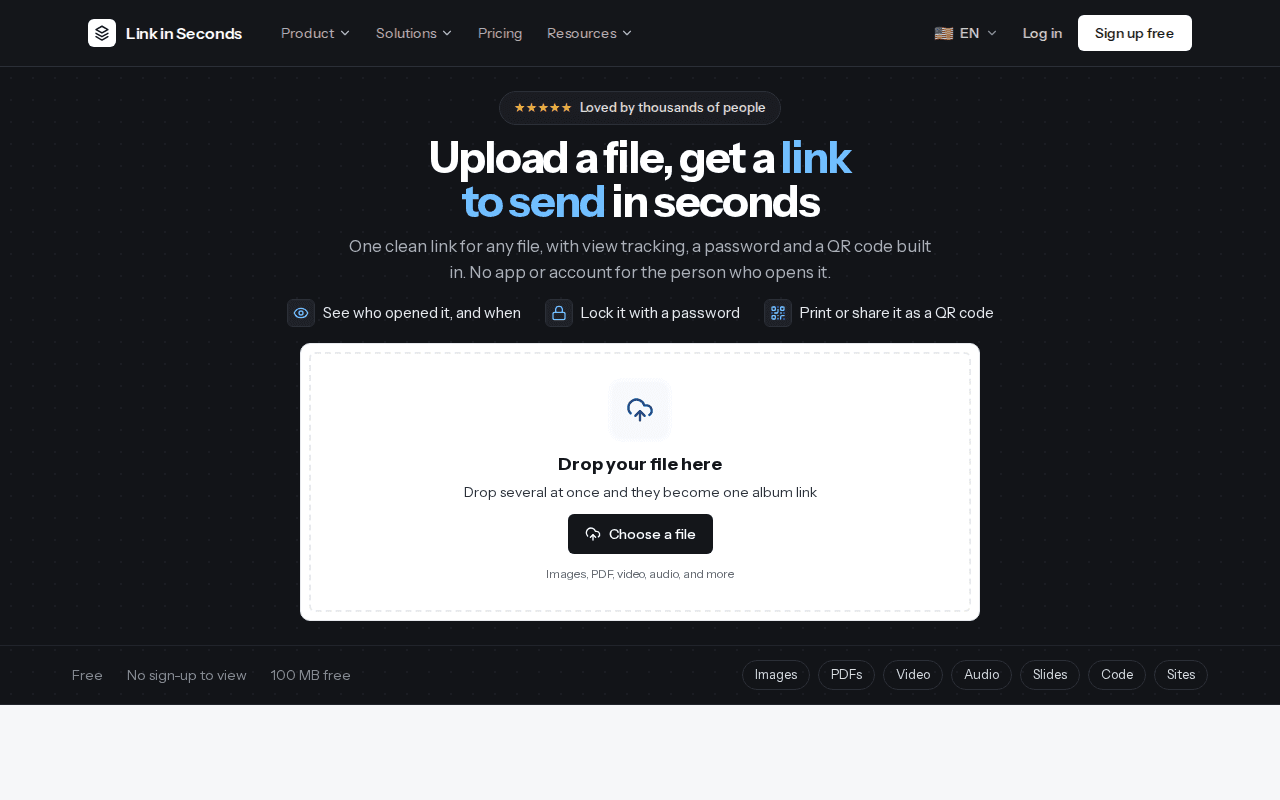
On the homepage or from Upload file on your dashboard, drop more than one file on the upload card, or select several in Choose a file. The card says it: drop several at once and they become one album link.
Name the album
Type a name in the collection name field, for example “Project files”. A name is required when you upload more than one file.
Publish
Each file uploads and gets its own link. When they are done you see Your album is ready, with the album link, a QR code and Copy album link. If you were signed out, you sign in with Google first and the files publish after sign-in, the same as a single file.
Or group links you already have
On your dashboard, open the Albums tab and click New album. Give it a name, then add files with Upload new or pick from Existing links. You need at least one file or link to create the album.
What people see on the album page#
An album link starts with linkinseconds.com/b/ followed by a short code. It opens in any browser with no account. The page shows the album name, how many files it holds and their total size.
- Gallery: every file as a tile. Click one to open it in the album, then use Gallery to go back to the grid.
- Download all: saves every file as one ZIP, in a single click.
- Per file: copy that file's own link, or download just that file.
- Share: share the album link itself.
The ZIP follows each file's rules
Manage an album#
In the Albums tab, open an album's menu. Rename & edit files lets you change the name and add or remove files. Password & settings opens Album settings:
| Setting | What it does | Plan |
|---|---|---|
| Password protect | Visitors must enter a password to open the album. | Pro |
| Expiry date | The album turns off on a date you pick. | Pro |
| Allow downloads | Off makes the album view-only: no Download all and no per-file download buttons. | All plans |
| Album enabled | Turn the album link off for everyone, and back on. | All plans |
Deleting an album does not delete its files. Your links stay, they are just no longer grouped. The same menu also has QR code, Share and Analytics for the album.
Album limits#
| Free | Pro and Lifetime | |
|---|---|---|
| Number of albums | 3 | Unlimited |
| Size of one album | 500 MB | 500 MB |
- Every file in an album is a link of its own, so it counts toward your plan's link limit and storage.
- If the files you pick add up to more than 500 MB, the upload stops before it starts. Remove a file or split them into two albums.
- On Free, your total storage limit applies first. See Plans and limits.
Related#
- Upload a file and get a link
- Link settings and controls for each file in the album
- Views and analytics
Last updated 4 October 2026. Something unclear or missing? Tell us.