QR codes
Every link comes with a QR code you can download and print, and it keeps working when you replace the file.
Every link you make comes with its own QR code. Print it on a flyer, a menu, a business card or a slide, and anyone who scans it opens your file. You don't need to set anything up, and it's free on every plan.
Get a link's QR code#
Open the QR code window
In My files, click the QR icon on the link's row (shown on wider screens), or open the ... menu and choose QR code.
Check it
The window shows the code, the file it opens ("Scan to open ...") and the exact address inside the code.
Download or copy
Click Download PNG to save the image, or Copy link to copy the address the code points to.
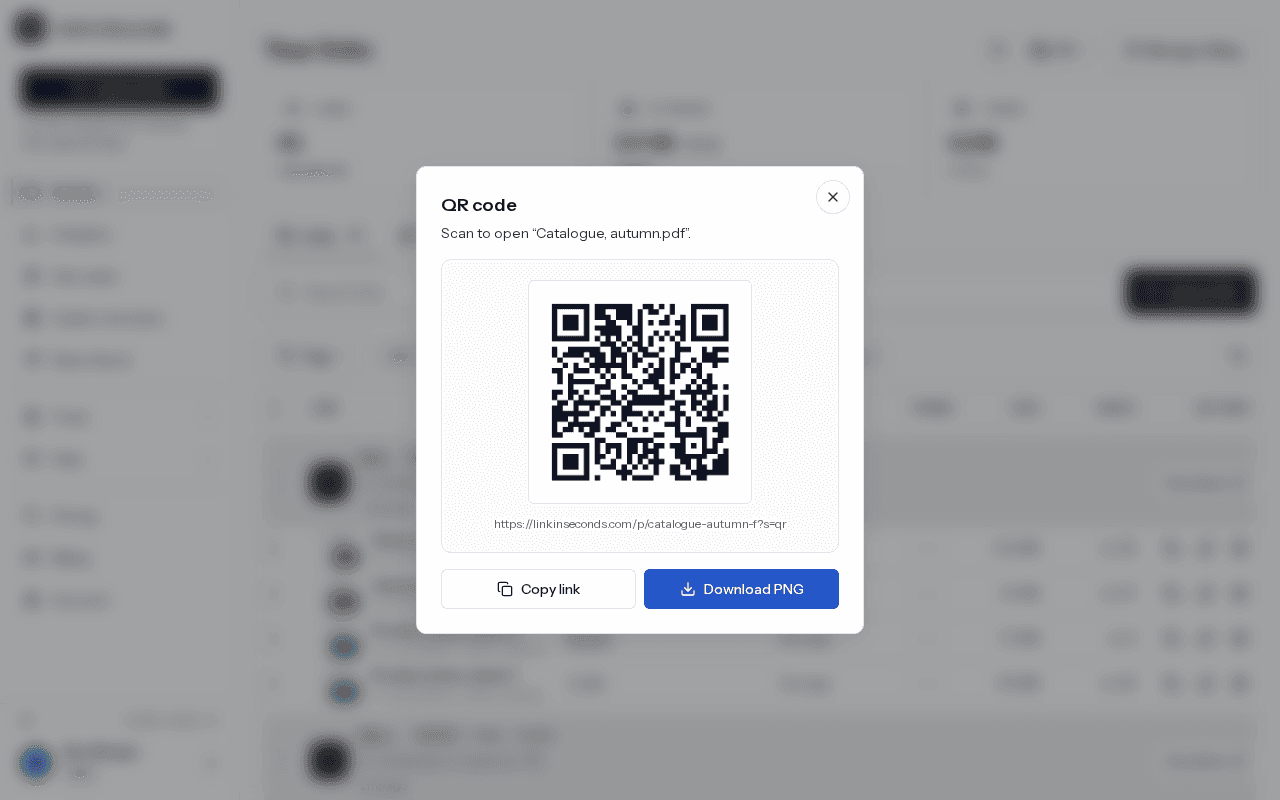
The PNG is 512 by 512 pixels, dark squares on a white background with a white border, and it is named after your link, like link-in-seconds-my-menu.png.
QR scans are counted separately#
The address inside the code ends in ?s=qr. That small marker tells us the visit came from a scan, so your analytics show QR scans apart from people who clicked the link directly. On Pro, the Traffic source panel puts the two side by side. See Views and analytics.
Copy link copies the QR address
?s=qr on the end. If you paste that into an email or chat, those visits are counted as QR scans too. To share the plain link, use the copy button on the link's row instead.Replace the file, keep the code#
The code points at your link, not at the file. When you replace the file, the same printed code opens the new version, and the view count carries on. Nothing needs reprinting. See Replace a file and keep the link.
Your link settings also apply to scans. If the link has a password, the person scanning is asked for it. If you turn the link off or it passes its expiry date, the code stops opening the file.
Don't change the link name after printing
/p/my-menu. If you later change it with Custom link, the address changes and printed codes stop working. Pick the name first, then print.Albums#
Albums have a QR code too. It points at the album's link, so one scan opens the whole set of files. See Albums.
Printing tips#
- Scan the code with your own phone before you print a batch.
- Keep the white border around the code. Scanners need it to find the edges.
- Print dark on a light background, and don't stretch the image out of square.
- Keep it big enough to scan from where people will stand. Small on a card is fine; a poster needs more.
- Add a few words next to it, like "Scan for the menu", so people know what they will get.
Free QR code generator#
Need a QR code for some other web address or text? The free QR code generator makes one in your browser and lets you download it as a PNG. Those codes contain exactly what you type, so they can't be changed later and their scans are not counted. For a code you can update and track, upload a file and use its link's QR code.
Related#
Last updated 4 October 2026. Something unclear or missing? Tell us.