How to share a podcast episode privately before it goes live
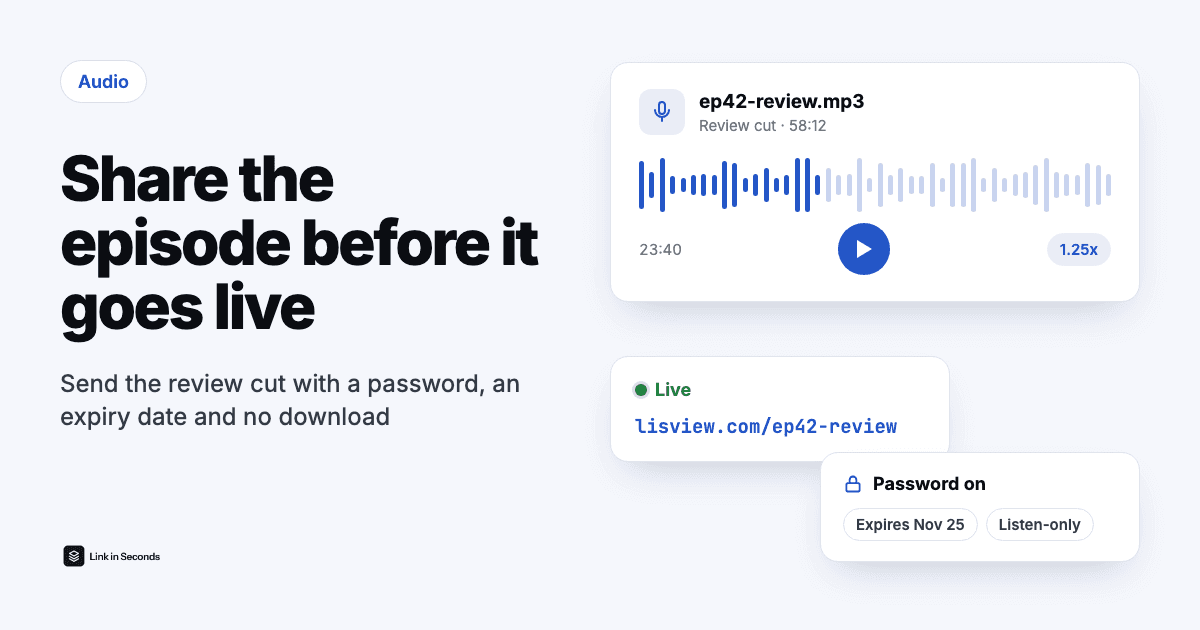
To share a podcast episode privately before it goes live, upload the review cut as a private audio link instead of publishing it to your feed. Add a password and an expiry date, turn downloads off, and send the link to your guest, co-host or editor. They press play in their browser with no account, you see whether they listened, and when you fix the edit you replace the file and the same link plays the new master.
Why not just publish the episode as unlisted or scheduled?
Because a podcast feed is built to be found. Once an episode is in your RSS feed, podcast apps can pick it up quickly, and pulling it back later does not remove copies that listeners have already downloaded. Some hosts offer a draft or preview link, and if yours does, that is a fine choice for a quick check. But most review rounds need more than a play button: a guest who wants to hear their answers before release, an editor who needs the newest cut every time, and a way to know whether anyone has actually listened.
A file link sits outside your podcast feed. It is a web page with a player that only the people you send it to will see. It will not appear in Apple Podcasts, Spotify or any other directory, and it is not a replacement for your hosting. It is the review copy.
What are the ways to send a review cut, and how do they compare?
Four options come up again and again. All of them can get an MP3 to a guest. They differ on control: can you lock the link with a password, and can it end on a date?
| Option | Plays in the browser | Password on the link | Expiry on the link |
|---|---|---|---|
| Google Drive link | Yes, in the preview | No | Only for people added by email |
| Dropbox link | Yes, in the preview | Professional, Essentials and team plans | Professional, Essentials and team plans |
| SoundCloud private track | Yes, SoundCloud player | No (secret link you can reset) | No |
| Your podcast host's preview | Depends on the host | Depends on the host | Depends on the host |
| Link in Seconds audio link | Yes, with seek, skips and speed | Yes, every plan | Yes, every plan |
- Google Drive or Dropbox. Both preview audio in the browser and you probably already pay for one. Drive has no link password, and its expiring access only works for people you add by email, not for an “anyone with the link” link. Dropbox puts link passwords, expiry dates and download blocking on Professional, Essentials and its team plans, not on Basic or Plus.
- SoundCloud private track. A private track gets a secret link with a random token, so it can't be found by search, and you can reset the secret link to cut off everyone who had the old one. It is a good fit for music. For a spoken episode it means a SoundCloud account and upload, and no password or end date on the link itself.
- Your podcast host's preview. Worth checking first. Features vary a lot between hosts, so look at your own host's help pages for whether a draft can be shared and with what limits.
- A Link in Seconds audio link. Upload the MP3 or WAV to turn the audio file into a link, then set a password, an expiry date, a view limit and listen-only in the link's settings. Every link reports opens and how far each visit played.
How do I share a podcast episode privately, step by step?
- Export the review cut. An MP3 is the easiest for everyone to play. WAV, M4A, AAC, OGG and FLAC work too (.opus files are not accepted). Name it so nobody confuses versions, such as “ep42-review-v1.mp3”.
- Upload it and sign in. Publishing needs an account (one tap with Google). The people you send it to never need one.
- Lock it down. In Link settings, add a password, set the link to expire after your release date, and turn downloads off so the page is listen-only. A view limit is useful when you send it to exactly one person.
- Send the link and the password separately. The link by email, the password by text, for example. Anyone who has both can listen, so keep them apart.
- Wait for the timestamps. The player shows minutes and seconds, so your guest can reply with “at 23:40, please cut that line”.
How do I know whether my guest actually listened?
Open the link's analytics. You see every open with its time, the device and country, how far each visit played and whether it reached the end. Turn on notify-on-view and you get an email the moment the link is opened, which tells you when it is reasonable to chase for feedback.
Two honest limits. The numbers count visits, not people: if your co-host plays it on a laptop and then on a phone, that is two visits. And you see a name only if you switch on the email gate, which asks for an email address before the player loads. For a single guest that is usually overkill; for a panel of five it saves you asking who has heard it.
Can I fix the edit without sending a new link?
Yes. When the corrected master is ready, replace the file on the same link. The address does not change, so the email thread, the password and any notes already pointing at it stay correct, and the next play is the new version. Earlier versions stay in the link's version history if you need to compare. The replace-a-file guide shows where the button is.
This is the part that saves the most time in a review round. Instead of “v3-final-FINAL.mp3” attachments, everyone keeps one link and always hears the latest cut.
Is it free to share a podcast episode this way?
Partly. The Free plan gives you 5 MB of storage without a card, which fits a short clip or a trailer but not a full episode: a typical spoken MP3 runs about 30 to 60 MB per hour. For a whole episode, start the 7-day free trial, which unlocks Pro, then Pro costs $9 a month or $49 a year if you keep it. Passwords, expiry, listen-only and listening stats are on every plan; you pay for storage and file size.
If the episode is mostly music, the music demo guide covers stems, albums and track order. If you are sending a rough voice note rather than a finished cut, voice memo to link is the quicker route, and you can also record up to 30 minutes straight in the browser.
Quick answers
Will a private review link show up in Apple Podcasts or Spotify?
No. A file link is a web page with a player, not a podcast RSS feed, so it never appears in any podcast app or directory. That is exactly why it works for a review cut: nobody finds it unless you send it to them.
Can my guest download the episode?
Only if you let them. Turn the download button off and the page is listen-only. That stops the easy copy, not every copy: anyone who can hear audio can record it, so share an unreleased cut only with people you trust.
What happens to the link after the episode is published?
Whatever you choose. Let it expire on release day, switch it off, delete it, or keep it as a private bonus file. The public episode lives in your podcast feed either way.
Does my co-host need an account to listen?
No. Listeners open the link in any browser, on a phone or a computer, with no account and no app. Only you sign in, to upload and manage the link.
Related guides
Turn any file into a link in seconds
Upload a PDF, image, video, or ZIP and get a clean, trackable link with a QR code. Free up to 5 MB, no card. 7-day free trial, then $9/mo + tax. $0 today, cancel anytime.
Start free trial →