Share large files on Microsoft Teams
Post one link that opens for your team and for people outside your organization.
Drop your file here
Drop several at once and they become one album link
or paste an image Ctrl+V
Free up to 5 MB, no card. Bigger files: 7 days free, then from $3/mo. Cancel anytime. See plans
“My students all said it was easy to use and worked perfectly.”
How do I share a large file on Microsoft Teams?
Upload the file to a site that gives you a link, then paste the link into the Teams chat or channel. Teams stores attachments in OneDrive or SharePoint, so storage quotas and sharing rules decide who can open them. A link here opens in any browser, for people inside and outside your organization, and shows when it was opened.
- people sharing files
- 5,500+
- links shared
- 11,400+
- times opened
- 39,900+
Share a large file on Teams in 3 steps
Upload the file
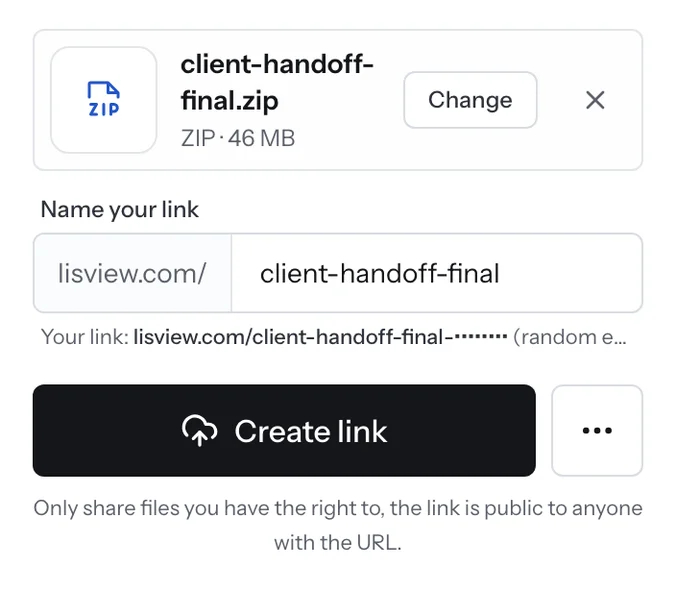
Drop the file into the box above, or pick several files to make one album link.
Copy the link
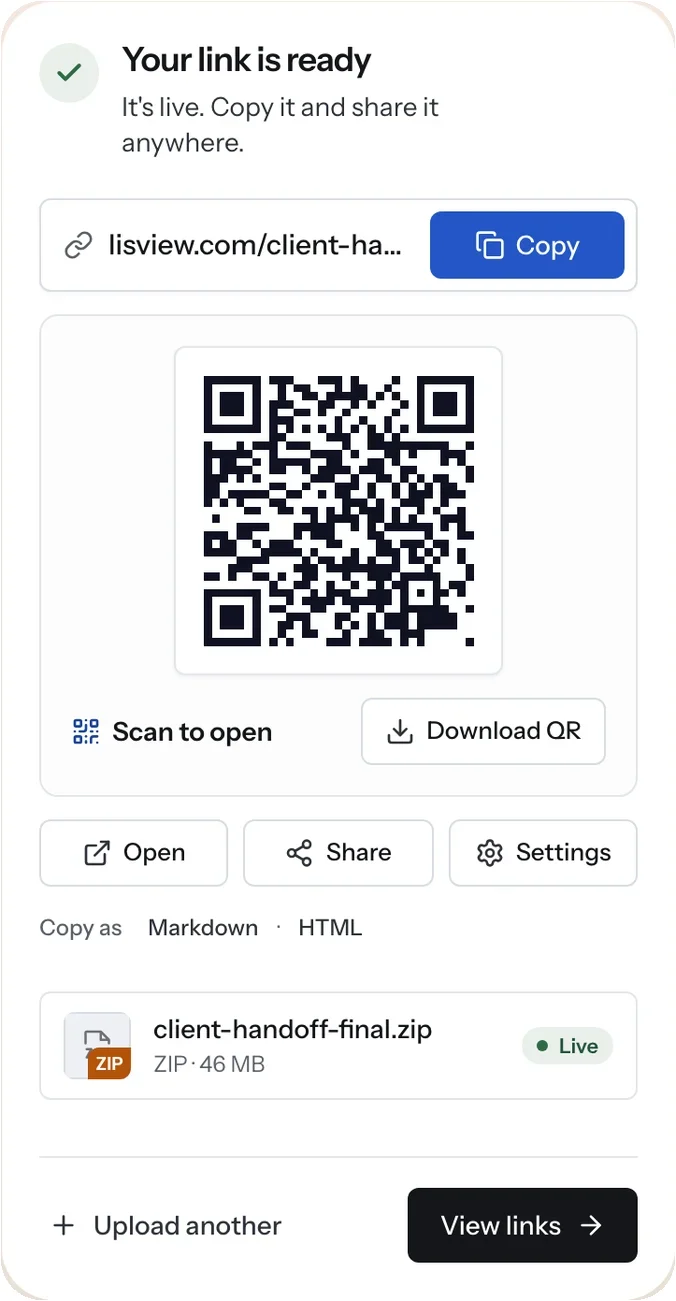
You get a short link and a QR code. Add a password if the file is confidential.
Paste it in Teams
Paste it into the chat or channel, and pin it if the team will need it again.
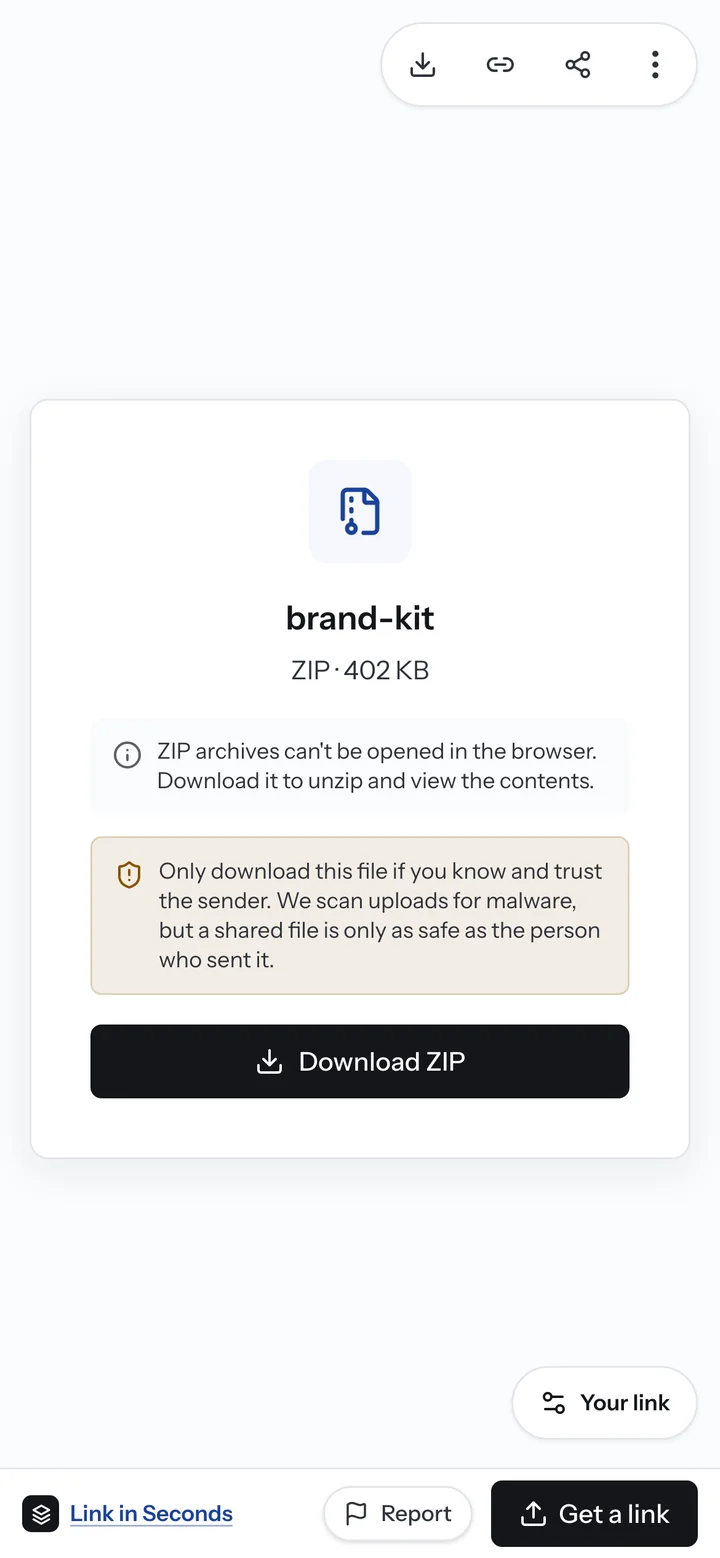
What it looks like
Why post a link instead of attaching the file?
It opens for people outside your organization
Clients and freelancers don't need a guest account or a Microsoft login. They tap the link and the file opens in their browser.
It doesn't use your OneDrive space
Teams puts chat attachments in your OneDrive, and Teams (free) has 5 GB for files. A link here uses your own storage, not your Microsoft quota.
You see when it was opened
Each open shows the day, device and country. You can also get an email when a client opens the file you posted.
The pinned link stays up to date
Upload a new version to the same link. The link pinned in the channel opens the latest file, so nobody grabs an old copy.
A link compared with attaching in Teams
Link in Seconds link
- Where the file is stored
- On the link
- Storage it uses
- Your plan here
- Opens for people outside
- Yes
- Needs a Microsoft account to open
- No
- See when it was opened
- Yes
- Password or end date
- Yes
Teams (work or school)
- Where the file is stored
- OneDrive or SharePoint
- Storage it uses
- Your company's quota
- Opens for people outside
- If your admin allows it
- Needs a Microsoft account to open
- Usually
- See when it was opened
- No
- Password or end date
- Depends on admin settings
Teams (free)
- Where the file is stored
- Your OneDrive
- Storage it uses
- 5 GB for files
- Opens for people outside
- If they're in the chat
- Needs a Microsoft account to open
- Usually
- See when it was opened
- No
- Password or end date
- No
What people say
“The admin interface is incredibly intuitive and set up exactly how a user actually thinks. My students all said it was easy to use and worked perfectly.”
“The app is genuinely nice and easy to handle. I keep all my different app links in one place, my App Store and Play Store screenshots, and I organise my images and PDFs into albums with tags. The big storage means everything just lives here.”
“I handle contracts, invoices and legal files for several different organisations, so almost everything I send is password protected. Link in Seconds makes that simple, and I run my portfolio on a custom domain. It is easy to use and genuinely affordable.”
Every link feature on every plan
Plans differ in room: links, storage and file size, plus HTML pages and website hosting.
Pro Monthly
$9/mo
billed every month, cancel anytime
- Unlimited links
- 100 GB of storage
- 10 GB per file
- Every link feature included
- HTML pages and website hosting
Lifetime
$149$99once
one payment, no renewals
- Unlimited links
- 200 GB of storage
- 10 GB per file
- Every link feature included
- HTML pages and website hosting
Pro Yearly
$4.08/mo
billed $49 a year
- Save 55% vs paying monthly
- Unlimited links
- 100 GB of storage
- 10 GB per file
- Every link feature included
7-day free trial, then $9/mo + tax. $0 today, cancel anytime.Or share files up to 5 MB free, no card.
Coming from WeTransfer, DocSend or tiiny.host? See the comparisons
Questions about sharing large files on Teams
The details
What are the limits?
- Teams uploads go to SharePoint or OneDrive, which take files up to 250 GB, but the storage quota behind them usually runs out first. Teams (free) has 5 GB of cloud storage for files.
- Here you can upload files up to 10 GB each. Files up to 5 MB are free with no card. Small takes files up to 3 GB ($3/month) and Pro up to 10 GB ($9/month), both after a 7-day free trial.
- Links have no expiry date unless you set one. If a plan ends and your files are over the free 5 MB, links pause until you subscribe or delete files; nothing is deleted.
What is the file size limit in Teams?
Teams itself doesn't store files. Chat files go to the sender's OneDrive and channel files to the team's SharePoint site, which accept files up to 250 GB. In practice the storage quota runs out first, and Teams (free) gives 5 GB of cloud storage for documents.
File size limits for 14 appsWhy can't people outside my organization open my Teams file?
Because SharePoint and OneDrive sharing settings decide who can open it, and file sharing in external chats is off by default until an admin turns it on. A link here is a normal web address, so anyone you send it to can open it, and you can add a password.
Will people need to download the file?
No. Videos play, PDFs show page by page, and Word and Excel files open as pages in the browser. If you only want people to look, turn off downloads.
View-only file sharingIs it safe to post a file link in Teams?
Anyone who has the link can open it, so treat it like the file itself. For confidential files add a password, an end date or a view limit, and turn the link off when the project ends. If your company requires files to stay in SharePoint, follow that rule.
How we keep uploads safeCan I tell who opened the file?
You see every open, with the time, device and country. To know who it was, turn on the email option, which asks for an email address before the file opens.
Ask for an email before openingWho shares big files on Teams this way?
- Agencies. Post final videos and decks in a client's Teams chat, and see when they were opened.
- Consultants. Share reports with client teams who can't accept files from outside their organization.
- Photographers. Send a corporate shoot as one album link the whole marketing team can open.
- Trainers. Post course recordings once, for staff in any organization, with no guest accounts.
Everything a link can do
- Custom link name: A link people actually remember. Name the link yourself instead of a random code. lisview.com/your-name reads clean in an email, on a slide, or under a QR code. Reserved words blocked, so it always resolves. Keep the name, swap the file behind it later.
- Password protect: Lock it to the right people. Add a password and the file stays sealed until someone types it. The link can be forwarded anywhere and still only opens for people who have the word. Hashed, never stored in plain text. Enforced on the file itself, not just the page.
- Expiry & view limit: Links that close themselves. Set an end date or a view cap and the link stops on its own. Send a quote that expires Friday, or a preview that closes after five opens, without remembering to delete it. By date, or after N views, or both. Reopen it any time by turning the limit off.
- QR code: A print-ready code for every link. Every link gets a crisp QR code, included on every plan. Put it on a menu, a flyer, a wall label or a product box, and it opens the same link a tap would. Download it as SVG or PNG, any size. Swap the file later, the printed code still works.
- View tracking: Know the moment it opens. See how many people opened the link and when, plus the full picture: referrers, devices, countries, and QR-vs-direct opens. Included on every plan. A live count on every link, no setup. Get an email the moment it's first opened.
Share your file on Teams as a link
Upload the file, copy the link and paste it into any chat or channel.
Free up to 5 MB, no card. Bigger files: 7 days free, then from $3/mo. Cancel anytime. See plans