How to share a lecture recording with students
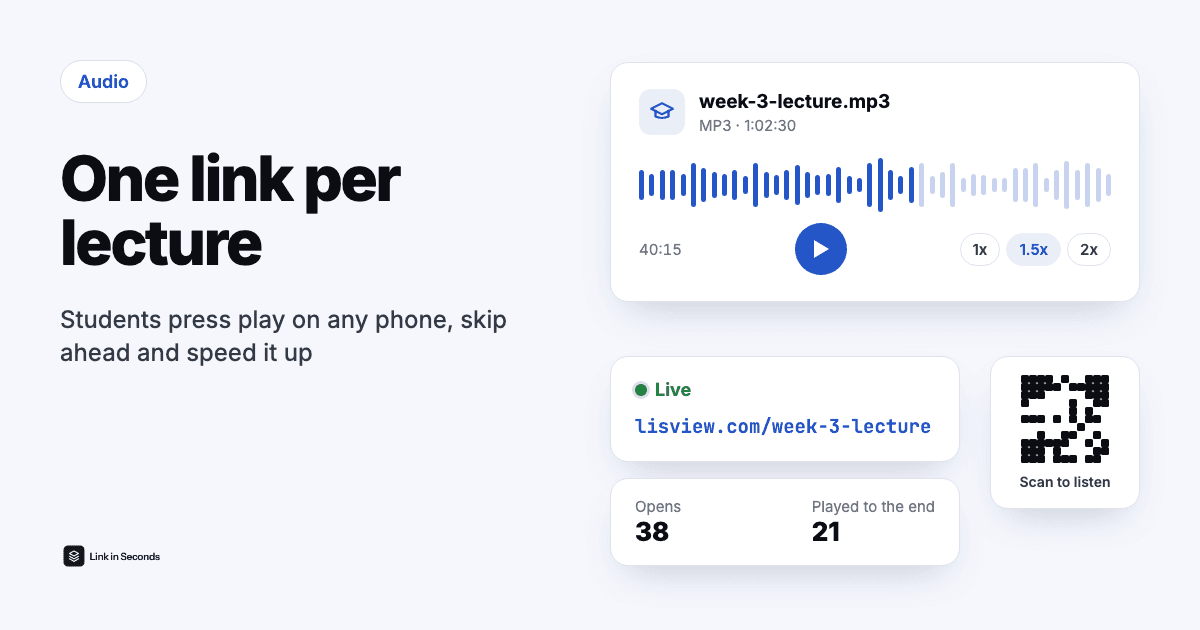
To share a lecture recording with students, record it on your phone as a compressed audio file, upload it as an audio link and post that one link in your course page or class group. A one-hour talk in MP3 at 64 to 96 kbps mono is only about 30 to 45 MB. Students press play in their browser with no account or app, skip and speed it up, and you can see how many opened it.
How should I record a lecture on my phone?
The phone in your pocket is good enough for speech. What matters more than the app is where the phone sits.
- Put it close to you, not at the back of the room. On the lectern, or in a shirt pocket with a cheap clip-on mic, is far clearer than a phone on a student desk.
- Turn on airplane or focus mode. A call or a notification in the middle of a recording can cut it short or add noise.
- Keep the default, compressed setting. On an iPhone, Voice Memos has an Audio Quality setting in the Settings app: Compressed (the default) is right for a lecture, Lossless makes much bigger files. Android recorder apps usually save M4A or MP3, which is fine.
- Or record in the browser. For a short explainer or a recap, the uploader can record up to 30 minutes straight from the microphone and publish the take as a link, with no file to move around.
How big is a one-hour lecture recording?
It depends almost entirely on the format and bitrate, not on what was said. Speech needs very little: a mono MP3 at 64 kbps sounds clear and stays small. Here is the arithmetic.
| Format | 1 hour | 90 minutes | Good for |
|---|---|---|---|
| MP3, 64 kbps mono | about 29 MB | about 43 MB | Clear speech, the best default |
| MP3, 96 kbps mono | about 43 MB | about 65 MB | Speech plus a little music or a noisy room |
| MP3, 128 kbps stereo | about 58 MB | about 86 MB | More than speech needs |
| WAV, CD quality | about 635 MB | about 950 MB | Editing only, never for sharing |
How do I share the recording with the class?
- Upload the file. Drop it into the audio to link uploader and sign in (one tap with Google). Use a clear name such as “Week 3, cell biology.mp3”, since students see it on the player.
- Trim it if you like. Cut the five minutes of setup at the start with Trim audio. The cut is a copy, so the sound is not re-encoded.
- Post one link per lecture. Every learning platform has a way to add a web link: an External URL in Canvas modules, a URL resource in Moodle, a Link attachment in Google Classroom. A class WhatsApp or Telegram group works too, and the link shows a proper preview card there.
- Print the QR code for the room. Every link has its own QR code. Put it on the handout or the last slide and students scan it with the phone camera. QR scans are counted apart from other opens, as the QR code for audio page explains.
Want the whole course in one place? Upload several recordings at once and they become one album link, with the tracks in order. Number the files 01, 02, 03 and the album keeps your running order.
What do students see when they open the link?
A clean player page with the title, the length, a big play button, a seek bar, 10-second skips and a speed control from 0.75x to 2x. The audio streams, so a student can jump straight to minute 40 of a 90-minute recording without waiting for the whole file. There is nothing to install and no account to create, which matters for a class where half the students are on phones and some are on borrowed laptops.
You can set a default speed on the link, for example 1.25x for a slow-paced review session. Students can still change it.
Can I see which students listened?
You see how many opens each recording got, when, on which devices, how far each visit played and whether it reached the end. That alone tells you a lot: if week 5 has half the opens of week 4, something about week 5 lost the room, or the link did not get posted.
Names are a different matter. The stats count visits, not people. To know who opened it, switch on the email gate, which asks for an email address before the player loads. Use it sparingly: for a revision lecture before an exam it can be useful, for every weekly recording it is friction.
How do I keep a lecture recording private?
A link is unlisted, not secret: anyone who has it can listen. For a recording that should stay with the class, use the controls on the link:
- Password. Post the password in the LMS, where only enrolled students see it, and the link in the class group. A forwarded link alone is useless. More on how that works in password-protected file sharing.
- Expiry date. Set it to the end of term or the day after the exam, and the link stops working on its own.
- Listen-only. Turn downloads off so students stream instead of saving the file.
- Replace, don't re-post. Recorded the wrong file or need to bleep out a student's question? Replace the file on the same link and every place you posted it plays the new version.
If students speak on the recording, follow your institution's rules on consent and on where class recordings may be stored. A link tool does not replace those rules.
Is it free to share lecture recordings?
Not for a full lecture. The Free plan gives you 5 MB of storage without a card, which is enough for a short clip or a few minutes of a voice note, but a one-hour lecture is close to 30 MB or more even when compressed. For a term of recordings, start the 7-day free trial, which unlocks Pro, then Pro is $9 a month or $49 a year if you keep it. The password, expiry, listen-only, QR code and listening stats are on every plan; you pay for storage and file size.
For a quick spoken note to one student rather than a whole class, the voice memo to link guide is the shorter path.
Quick answers
Do students need an account or an app to listen?
No. They tap the link in the course page or the class group and the recording plays in the browser on any phone or laptop. Only the teacher signs in, to upload and manage the links.
Can students speed up the lecture?
Yes. The player has a speed control from 0.75x to 2x, 10-second skips and a seek bar that jumps straight to any minute, even in a long recording. You can also set a default speed for the link, and students can still change it.
Can I stop students from downloading the recording?
You can turn the download button off so the page is listen-only. It stops the easy copy, not every copy, since anyone can record audio that plays on their device. If a recording must not leave the class, check your institution's rules first.
Will this show up as a podcast students can subscribe to?
No. Each link is a web page with a player, not a podcast feed. Students open it from wherever you post it. If you want the whole term in one place, put the recordings in one album link.
Related guides
Turn any file into a link in seconds
Upload a PDF, image, video, or ZIP and get a clean, trackable link with a QR code. Free up to 5 MB, no card. 7-day free trial, then $9/mo + tax. $0 today, cancel anytime.
Start free trial →