How to share a Canva design as a link (that opens for anyone)
Share a Canva design as a link
You finished the design in Canva. Now someone has to actually see it: a client, a printer, a WhatsApp group, or whoever scans the QR code on the table. Canva can hand you a share link in two clicks, and for a quick internal look it is fine. The moment you need to share it online with anyone outside your team, though, it is the wrong link, for three specific reasons.
The short answer
- Canva's link is live, not fixed. It always shows the current design, so anything you edit changes under people who already have the link.
- It opens inside Canva, with Canva branding and a sign-up prompt around your work.
- The fix is one export. Download the design (PDF, PNG or MP4), upload it once, and share a clean public link that opens in any browser, with a QR code and a view count attached.
Why a Canva share link is the wrong link to send out
A Canva "view only" link does work without an account, and that part is genuinely fine. What it does not do is behave like a finished document:
- It keeps updating. A Canva view link is a window onto the live design. Nudge a price, swap a photo, start a v2 in the same file, and everyone holding that link sees the change. That is exactly wrong for a menu at the printer, a pricing sheet a client signed off, or a flyer with a QR code already on a wall.
- It lands in Canva, not on your design. Your reader gets Canva's chrome: the logo, an account prompt, and an invitation to use your work as a template. Fine for a teammate. Not what you want a client's first look to be.
- It is tied to your Canva account. Move the design into another folder or team, leave the team, or hit a permission change and the link can stop resolving for outsiders, the same class of failure as a Google Drive link that asks for access.
- It tells you nothing. No view count, no password, no expiry.
A Canva link is a window onto a design that is still moving. An export is a finished object. Finished is what you actually want to send.
Rule of thumb
Step 1: Export the design from Canva
In Canva, hit Share → Download and pick the format. This choice matters more than people expect, so here is the short version:
| Tool | Best for | What you get | Watch out for |
|---|---|---|---|
| PDF Standard Most casesThe default answer | Menus, one-pagers, proposals, anything read on a screen | Sharp text, small file, multi-page stays in order | Images are downsampled, not for print |
| PDF PrintGoing to a printer | Anything a print shop will handle | Full-resolution images, crop marks, bleed | Much larger file, and overkill for a phone screen |
| PNGSingle-page graphic | Posters, social graphics, logos, transparency | Crisp edges and text at any zoom | One page per file, a 3-page design becomes 3 files |
| JPGPhoto-heavy | A single photographic page where size matters | Smallest of the image formats | No transparency, and text edges soften |
| MP4 / GIFAnimated designs | Animated posts, video invites, motion ads | Motion survives the export | Bigger files, plan on a link, not an attachment |
PDF Standard Most cases
The default answer
- Best for
- Menus, one-pagers, proposals, anything read on a screen
- What you get
- Sharp text, small file, multi-page stays in order
- Watch out for
- Images are downsampled, not for print
PDF Print
Going to a printer
- Best for
- Anything a print shop will handle
- What you get
- Full-resolution images, crop marks, bleed
- Watch out for
- Much larger file, and overkill for a phone screen
PNG
Single-page graphic
- Best for
- Posters, social graphics, logos, transparency
- What you get
- Crisp edges and text at any zoom
- Watch out for
- One page per file, a 3-page design becomes 3 files
JPG
Photo-heavy
- Best for
- A single photographic page where size matters
- What you get
- Smallest of the image formats
- Watch out for
- No transparency, and text edges soften
MP4 / GIF
Animated designs
- Best for
- Animated posts, video invites, motion ads
- What you get
- Motion survives the export
- Watch out for
- Bigger files, plan on a link, not an attachment
Multi-page designs
Step 2: Turn the export into a link
Drag the exported file onto the image-to-link page (or the PDF-to-link page if you exported a PDF, or video-to-link if you exported an MP4), give the link a short readable name, and publish. Files up to 250 MB are free, which covers essentially any Canva export.
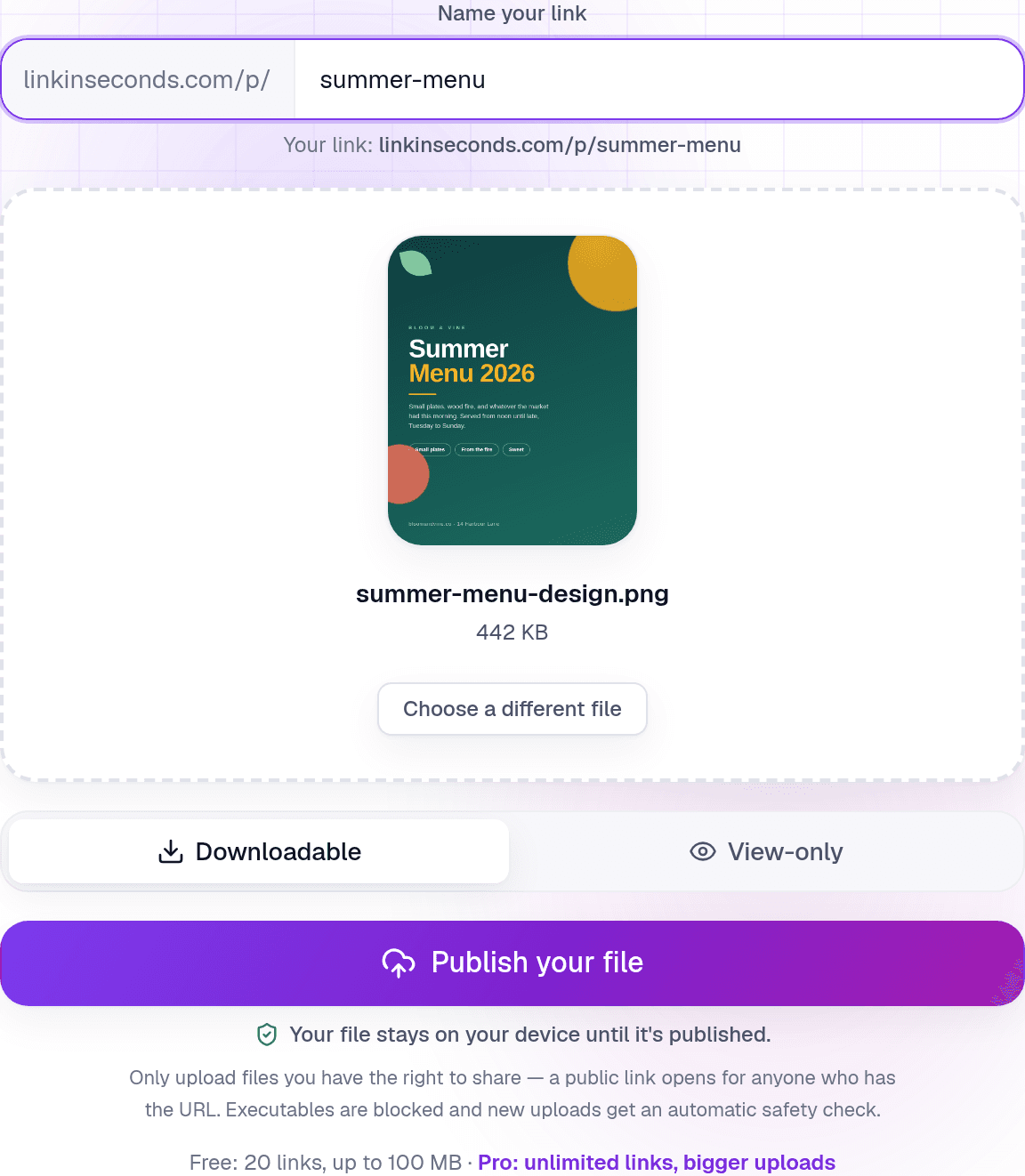
That Downloadable / View-only switch is worth a second of thought. Leave it downloadable when the other side needs the actual file, like a printer or a client's marketing team. Flip it to view-only when you want it read, not kept and re-used; the honest limits of that are in view-but-not-download.
Step 3: Share the link, or the QR code
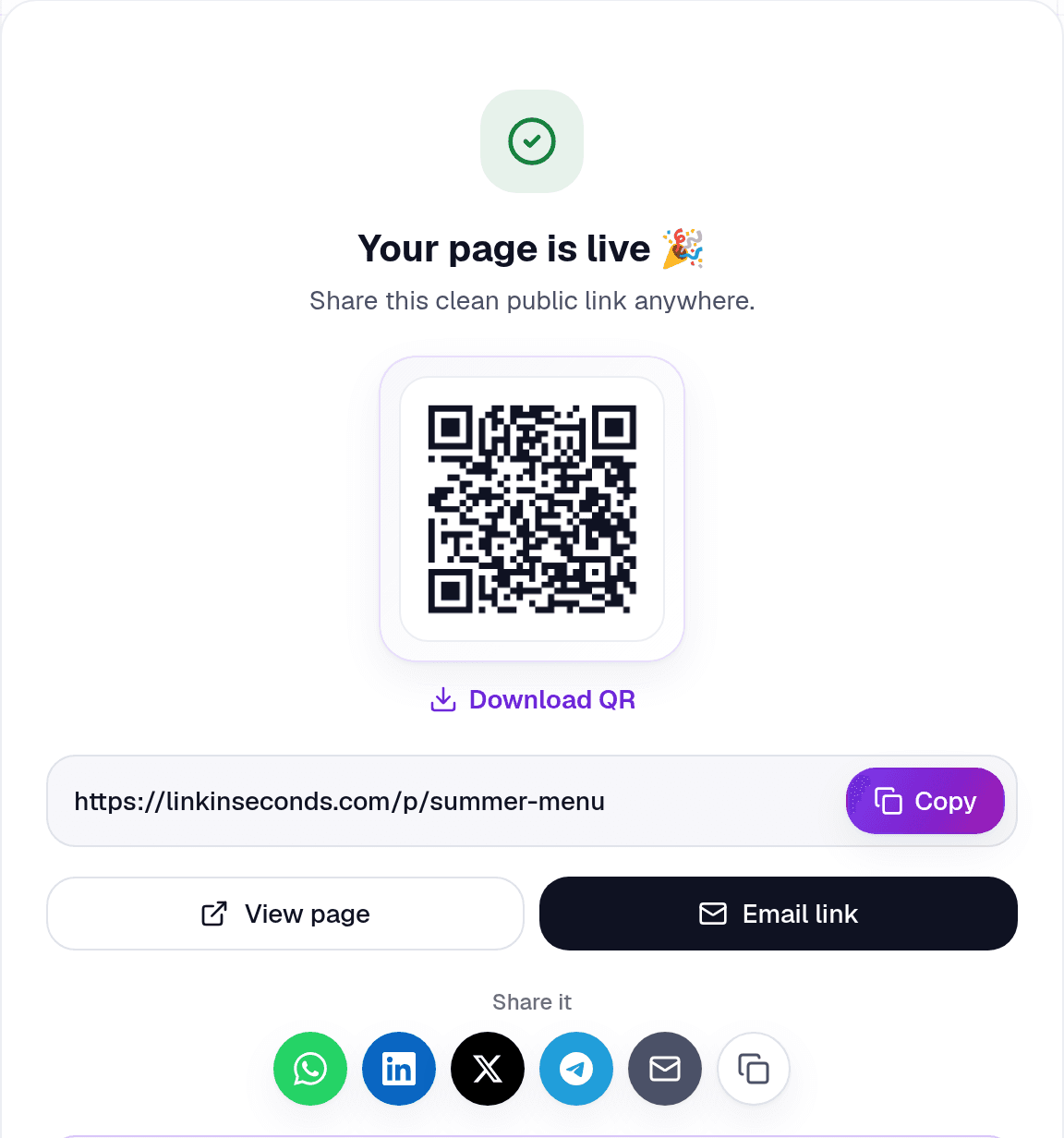
Publishing gives you the public URL, a QR code for it, and one-tap sharing to WhatsApp, LinkedIn, X, Telegram or email. The QR is the underrated half: print it on the table tent, the flyer, or the packaging and any phone camera opens the design.
The part people miss
What the other person sees
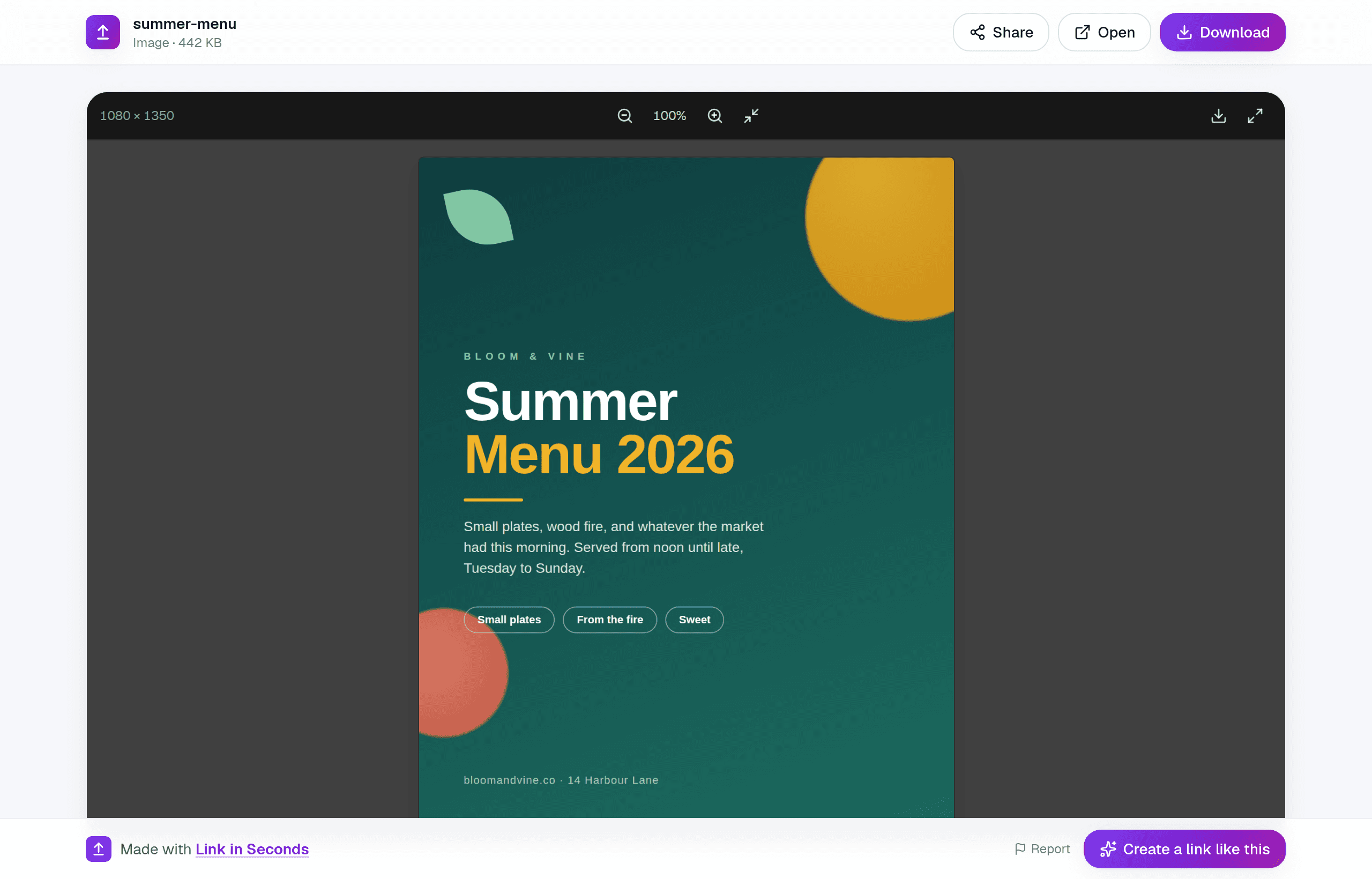
No account, no app, no Canva. The design opens full-bleed in their browser, on a laptop, with a Share, Open and Download button and nothing else competing for attention:
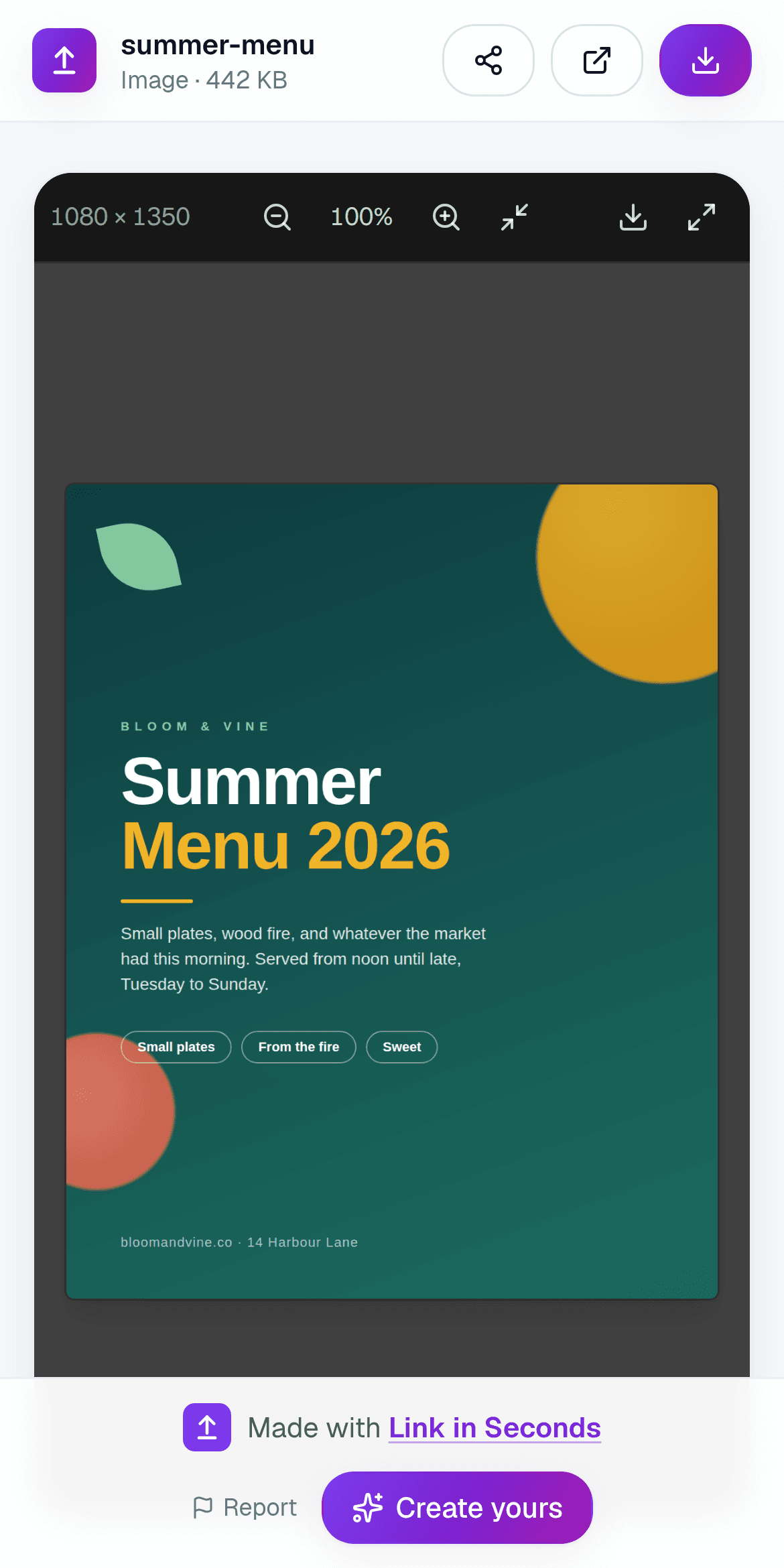
And the same link, on the phone it will actually be opened on most of the time:
Canva link vs. exported link, side by side
Good at
- Canva link: perfect while the design is still moving, every edit is visible instantly
- Canva link: nothing to export, nothing to re-upload
- Exported link: a fixed snapshot, what they opened is what you sent
- Exported link: opens on your design, with no sign-up prompt around it
- Exported link: QR code, view count, and a password or expiry, all free
Falls down on
- Canva link: keeps changing under people who already have it
- Canva link: opens inside Canva's viewer, branded and template-ified
- Canva link: no views, no password, no expiry, and it breaks if the design moves
- Exported link: you have to re-export when the design genuinely changes
The whole flow, once more
- 1
Share → Download in Canva
PDF Standard for screens, PDF Print for printers, PNG for a single graphic, MP4 for animation. - 2
Drop the file on Link in Seconds
Use image-to-link for a PNG or JPG, PDF-to-link for a PDF. - 3
Name the link
So the address reads like the thing it opens: lisview.com/summer-menu, not lisview.com/x7f2q. - 4
Copy the URL, or download the QR
Paste it in a chat or a bio; print the QR on the table tent, flyer or packaging.
At a glance
- Time it takes
- About ten seconds, after the export finishes
- Best export format
- PDF Standard for screens · PDF Print for printers · PNG for one graphic
- Recipient needs
- A browser. No Canva account, no app, no sign-in
- What you get back
- A clean lisview.com address, a downloadable QR code, and a view count
- Free plan
- Files up to 250 MB, and free links do not expire
- Pro adds
- Unlimited links, more storage, bigger files and website hosting (every link feature is already free)
Common questions
Can someone view my Canva design without a Canva account?
Yes, a public view link opens for anyone. It opens inside Canva though, with Canva branding and a sign-up prompt around your work. An exported file shared as its own link opens on the design and nothing else.
Will the link change when I edit the design?
A Canva view link will: it always shows the live design. An exported file will not; it is a snapshot. If you re-export a corrected version, you can replace the file behind an existing Link in Seconds link and every copy of that URL (and every printed QR code) now opens the new version.
What about a multi-page design?
Export it as a single PDF. One link, pages in order, no zip and no bundle of images, the same logic as sharing multiple PDFs as one link.
Can I send it on WhatsApp?
Yes, and a link is the better way to do it: WhatsApp recompresses images and video you send through the media picker. A link stays full quality, more on WhatsApp's limits here.
Is it free?
Yes, sharing an export up to 250 MB as a link is free, and free links do not expire. Passwords, expiry dates, custom link names and advanced analytics are free on every plan; Pro adds more links, more storage and website hosting. See pricing.
The short version
Turn any file into a link in seconds
Upload a PDF, image, video, or ZIP and get a clean, trackable link with a QR code, free.
Try Link in Seconds →