How to share a Canva design as a link (public view, view-only or edit)
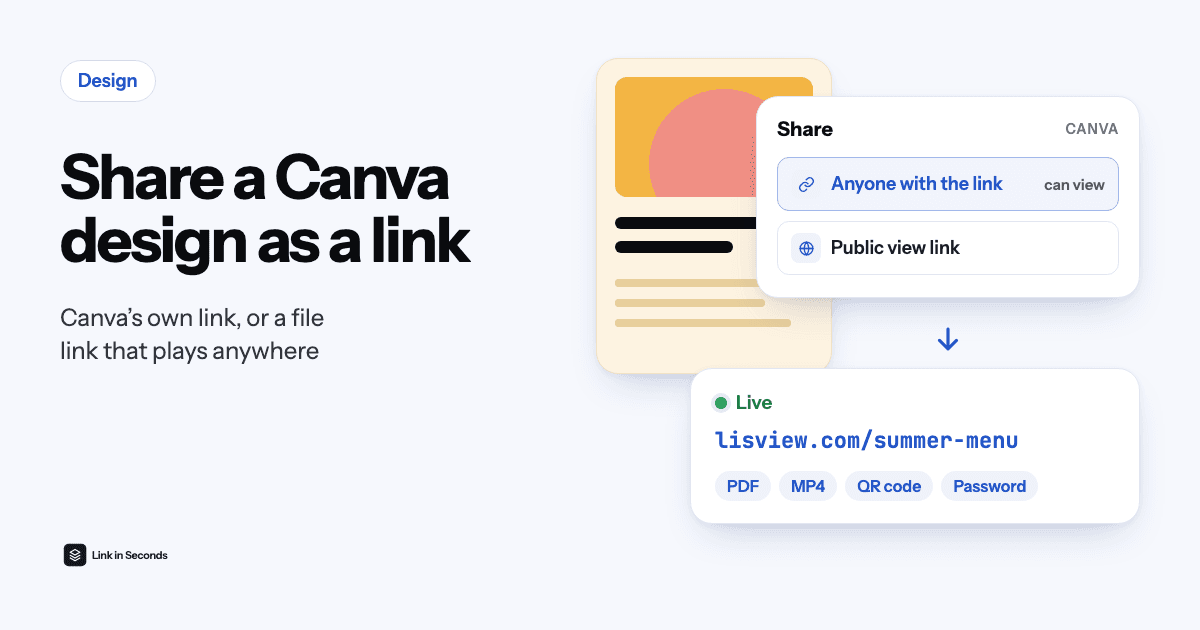
To share a Canva design as a link, open it and select Share. Under Access level, change Only you can access to Anyone with the link, pick can view, can comment or can edit, and select Copy link. For a view-only page anyone can open, choose Public view link, then Create public view link. If the other person needs the file itself, to download, print or play a video outside Canva, download the design as a PDF, PNG or MP4 and share that file as a link instead.
The short answer
- To show the design: Share, Anyone with the link, can view, Copy link. Or a Public view link for a clean view-only page.
- To let people edit: the same menu with can edit. Canva lets them in as guests with no sign-in.
- To hand over the file: guests can't download or print from a Canva link, so download it yourself and share a link to the PDF, PNG or MP4.
How do I share a Canva design with a link?
These are Canva's own steps, from its Help Center, for desktop:
- 1
Open the design and select Share
Share is in the menu bar above the editor. From your home page, use the More icon on the design instead. - 2
Set Access level to Anyone with the link
Your design starts as Only you can access. Pick Anyone with the link (or Only your team, in a team workspace). - 3
Choose can view, can comment or can edit
Can view is the safe default for a client. You can change it at any time after you share. - 4
Select Copy link
Canva creates a short link for the design. Paste it into an email, chat or message.
To send one page rather than the whole design, select More on that page, then Copy link to this page. To share with named people instead, type their emails under People with access in the same Share panel.
How do I make a public view link in Canva?
A public view link is Canva's view-only page for anyone. Canva says it lands people in “the viewing experience best suited to the design”.
- 1
Open the design and select Share
In the menu bar above the editor. - 2
Select Public view link
Then select Create public view link. - 3
Name the link, then Save and copy
Live appears at the top of the link when it is ready, and the copied short link opens for anyone.
- See who looked: select Visitors next to the link for the average time spent and the time on each page.
- More than one link (Add another link) is on paid plans.
- Make it private again: Share, Public view link, More, Delete. The URL stops working, and a new public view link gets a new URL.
- Template link: in the same Share options, a Template link lets anyone use the design as a template for their own copy. It is only on Canva Pro, Teams, Enterprise, Education and Nonprofits.
Which Canva link should I send?
| Link | Best for | The catch |
|---|---|---|
| Anyone with the link, can view | A client or friend who only needs to look | Opens your Canva design; later edits show up for them |
| Anyone with the link, can comment | Feedback rounds | They can read comments without logging in, but must log in to reply or add one |
| Anyone with the link, can edit | A collaborator | Works without sign-in (as a guest), but guests can't download or print |
| Public view link | A polished view-only page for anyone | Shows visitors and time per page; extra links are on paid plans |
| Template link | Letting people make their own copy | Only on Canva Pro, Teams, Enterprise, Education and Nonprofits |
| A link to the downloaded file | Printers, downloads, video that should just play | You re-download and replace it when the design changes |
Can people open a Canva link without an account?
Mostly, yes. Canva says that with Anyone with the link and can edit, people can make changes without signing up or logging in; they show up in your design as guests with animal pictures and names. With a comment link they can read every comment without logging in, but they need an account to reply or add one.
What guests can't do matters just as much. Canva lists it plainly: they can't upload files, comment, make a copy, print, publish or download the design. So a Canva link is the wrong thing to send a print shop, or anyone who has to keep the file.
Before you share publicly
When is a link to the downloaded file better?
Keep the Canva link while you are still working together. Send a file link when:
- They need to download or print it. Canva guests can do neither; a file link has a Download button (or turn it off for view-only).
- The video should just play. A Canva link opens Canva. An MP4 link plays in the phone's browser like any video.
- The version has to stay put. A Canva link opens the design itself, so later edits show up for everyone who has it. A downloaded PDF is the version you approved.
- You want a password, an expiry date or a view limit on the link, or to see how many times it was opened.
- It goes on a printed QR code. Point the QR at the link, and you can replace the file later without reprinting.
How do I share the downloaded design as a link?
- 1
Download it from Canva
Share, then Download. Pick the file type from the table below. - 2
Upload it to Link in Seconds
- 3
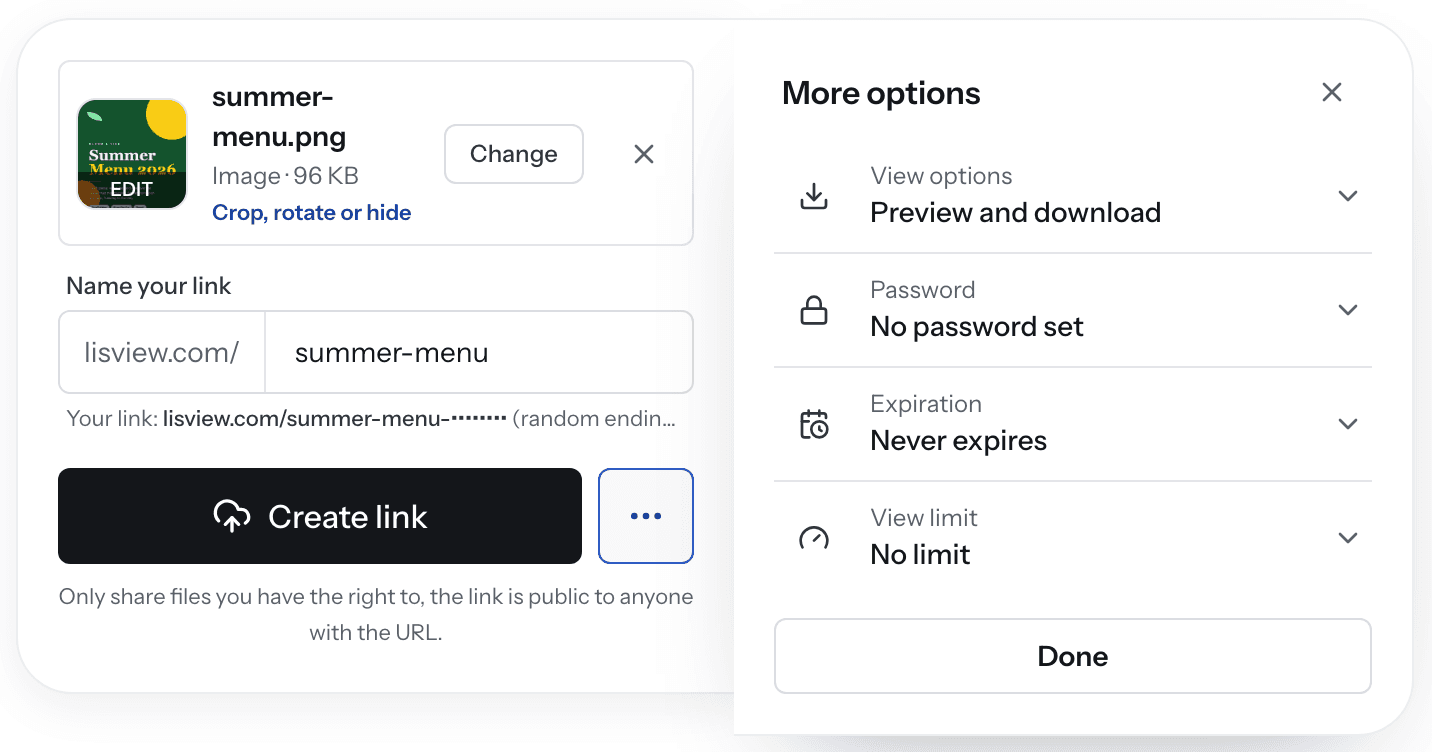
Name the link and set it up
A readable name like lisview.com/summer-menu, plus view-only, a password or an expiry date if you want them. - 4
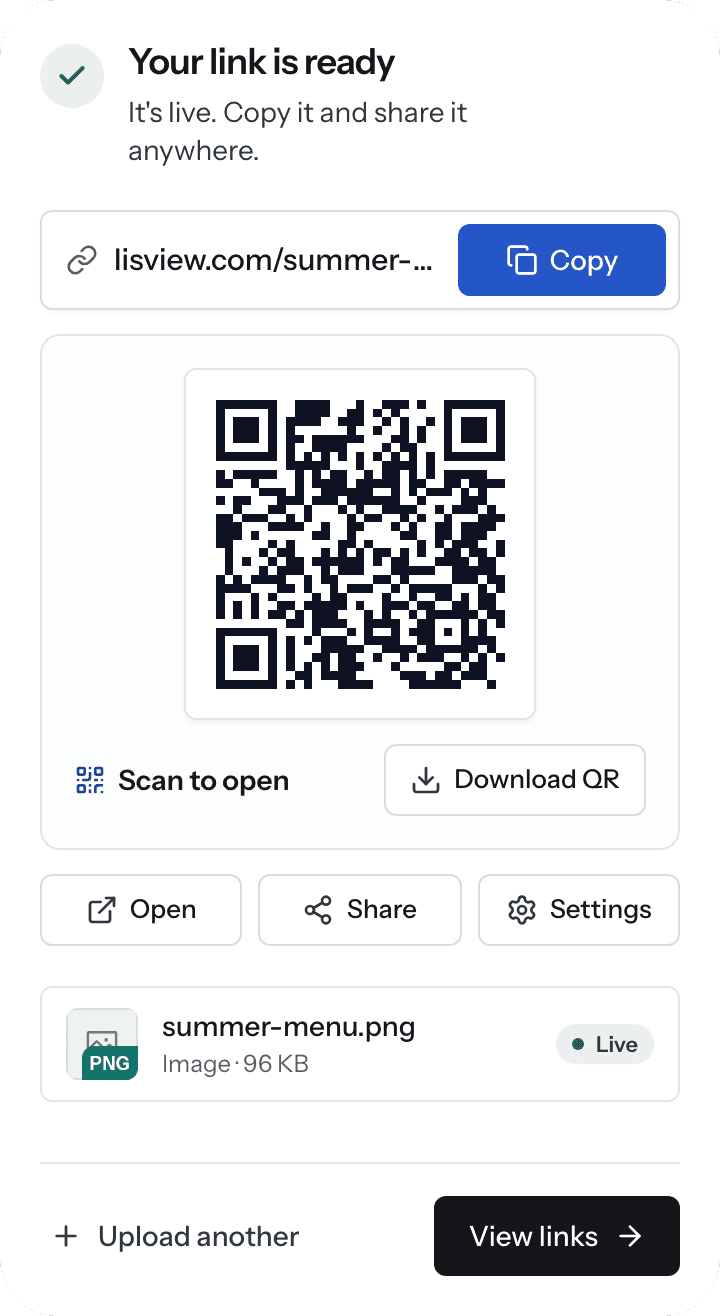
Copy the link or download the QR code
The person opens it in any browser. They need no account and no app.
| Tool | Best for | What you get | Watch out for |
|---|---|---|---|
| PDF Standard Most casesRead on a screen | Menus, one-pagers, proposals, multi-page designs | Pages stay together and in order; the only Canva type with a password option | 96 dpi, so not for print |
| PDF PrintGoing to a printer | Anything a print shop will handle | 300 dpi, bleed, crop marks, RGB or CMYK | Higher resolution, so a bigger file |
| PNGOne graphic | Posters, social posts, logos | Crisp text and edges | One file per page; transparent background is a paid Canva option |
| JPGPhoto-heavy page | A single photographic page | Small file | No transparency |
| MP4 / GIFMotion | MP4 for designs with video and music, GIF for animated designs | Plays outside Canva | PDF can't hold animation or video |
PDF Standard Most cases
Read on a screen
- Best for
- Menus, one-pagers, proposals, multi-page designs
- What you get
- Pages stay together and in order; the only Canva type with a password option
- Watch out for
- 96 dpi, so not for print
PDF Print
Going to a printer
- Best for
- Anything a print shop will handle
- What you get
- 300 dpi, bleed, crop marks, RGB or CMYK
- Watch out for
- Higher resolution, so a bigger file
PNG
One graphic
- Best for
- Posters, social posts, logos
- What you get
- Crisp text and edges
- Watch out for
- One file per page; transparent background is a paid Canva option
JPG
Photo-heavy page
- Best for
- A single photographic page
- What you get
- Small file
- Watch out for
- No transparency
MP4 / GIF
Motion
- Best for
- MP4 for designs with video and music, GIF for animated designs
- What you get
- Plays outside Canva
- Watch out for
- PDF can't hold animation or video
Cropped photos in a PDF
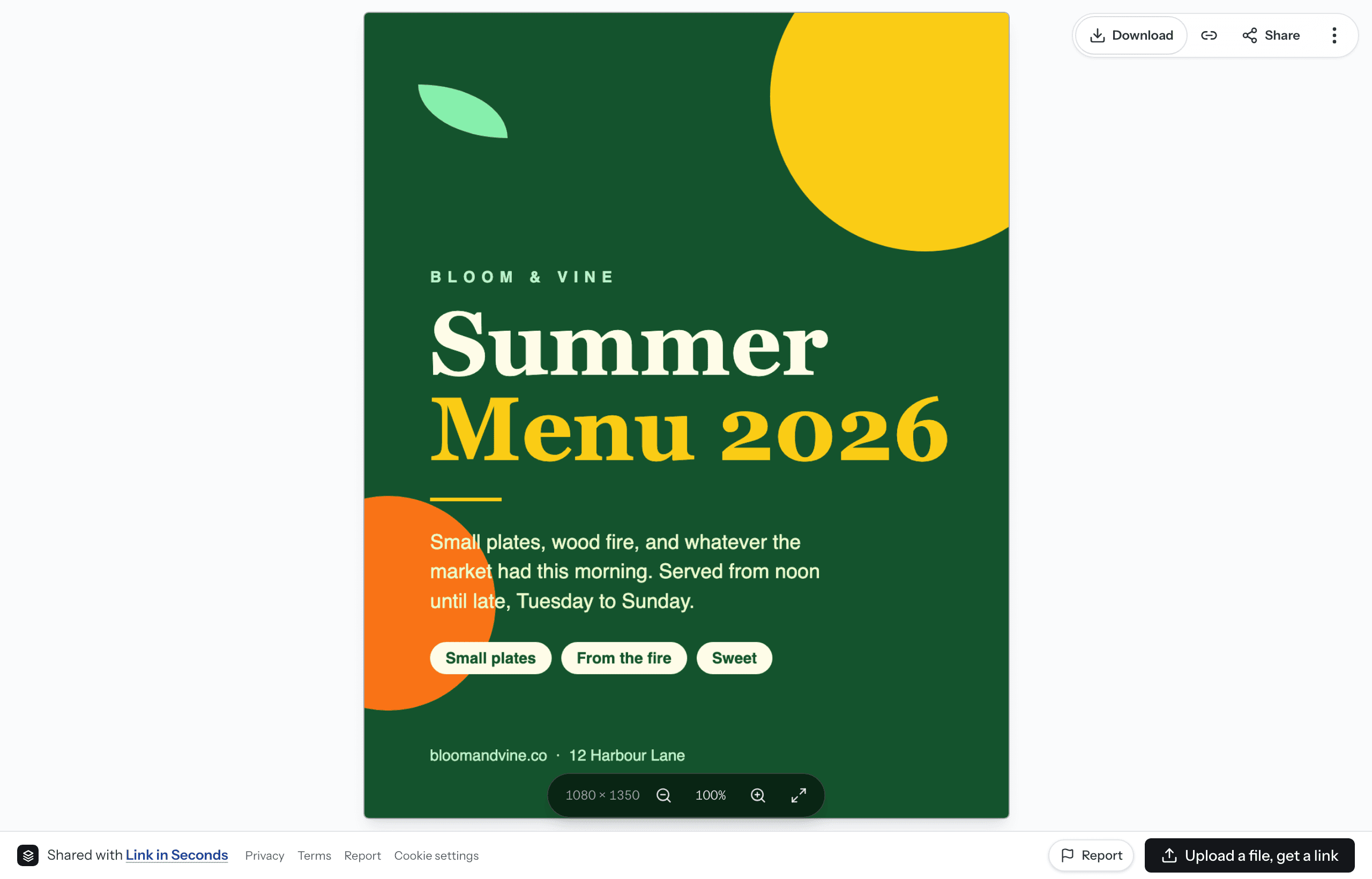
What does the other person see?
The design, full width in their browser, with Download and Share buttons and no Canva around it. It works the same on a laptop and on the phone it will usually be opened on.
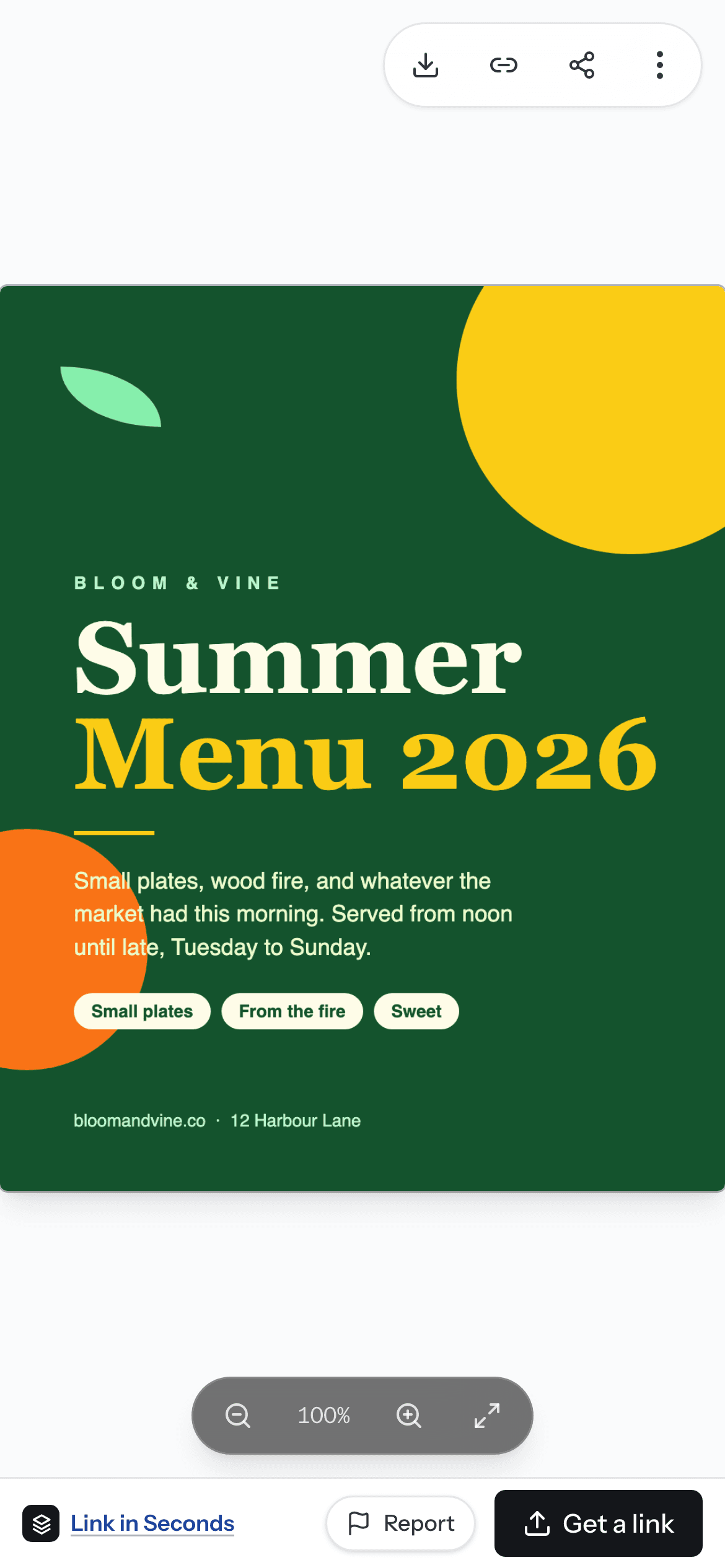
Made a fix? Download the new version and replace the file. The same link, and every QR code already printed, opens the new one. More in turn a PDF into a QR code.
At a glance
- Share a Canva link
- Share, Access level: Anyone with the link, can view / comment / edit, Copy link
- Public view link
- Share, Public view link, Create public view link, Save and copy
- Template link
- Canva Pro, Teams, Enterprise, Education and Nonprofits only
- Guests can't
- Download, print, copy or comment on the design
- File link instead
- Download as PDF, PNG or MP4, upload, share the link or its QR code
Is it free?
Canva's own share links are part of Canva. For a file link: To publish you sign in once. The Free plan holds 5 MB in total with no card, and those links stay live as long as your files fit. A bigger export starts the 7-day free trial; after it, Pro is $9/mo for 100 GB of storage and files up to 10 GB each. Passwords, expiry dates, view-only and view counts are on every plan, and the person opening it never needs an account. See pricing.
Quick answers
How do I share a Canva design with a link?
Open the design and select Share. Under Access level, change Only you can access to Anyone with the link, choose can view, can comment or can edit, then select Copy link. For a view-only page anyone can open, choose Public view link, then Create public view link.
Can someone open a Canva link without a Canva account?
Yes. Canva says an Anyone with the link edit link works without signing up or logging in, and people with a comment link can read the comments without logging in. They need to log in to reply or add a comment.
How do I make a Canva link people can download from?
Canva's own help says guests who open a shared link can't download or print the design. If the other person needs the file, download it yourself (Share, then Download) as a PDF, PNG or MP4 and share that file as a link.
What is the difference between a public view link and a template link?
A public view link lets anyone look at the design. A template link lets anyone use it as a template for their own copy. Template links are only on Canva Pro, Teams, Enterprise, Education and Nonprofits plans.
Why does my Canva link open the whole Canva app?
A Canva link opens the design inside Canva. If you just want a video to play or a PDF to open, download the design as MP4 or PDF and share a link to that file. It opens in the browser on its own.
Can I stop people opening my Canva link?
Yes. Change Access level back to Only you can access, or delete the public view link (Share, Public view link, More, Delete). Deleting it kills that URL; a new public view link gets a new URL.
Related guides
- Share a PDF people can view but not download
- Share multiple PDFs as one link
- Send a file that is too big for WhatsApp
Canva steps checked 19 November 2026 against Canva's Help Center: sharing designs via email or links, public view links, collaborate with anyone, download file types. Canva changes its menus from time to time; the labels above are the ones it used on that date.
Turn any file into a link in seconds
Upload a PDF, image, video, or ZIP and get a clean, trackable link with a QR code. Free up to 5 MB, no card. 7-day free trial, then $9/mo + tax. $0 today, cancel anytime.
Start free trial →