Share large files on Microsoft Teams
Post one link that opens for your team and for people outside your organization.
Suelta tu archivo aquí
Suelta varios a la vez y se convierten en un enlace de álbum
o pega una imagen Ctrl+V
Free up to 5 MB, no card. Bigger files: 7 days free, then from $3/mo. Cancel anytime. See plans
“Mis alumnos coincidieron en que era fácil de usar y funcionaba perfecto.”
How do I share a large file on Microsoft Teams?
Upload the file to a site that gives you a link, then paste the link into the Teams chat or channel. Teams stores attachments in OneDrive or SharePoint, so storage quotas and sharing rules decide who can open them. A link here opens in any browser, for people inside and outside your organization, and shows when it was opened.
- personas compartiendo archivos
- 5.500+
- enlaces compartidos
- 11.400+
- aperturas
- 39.900+
Share a large file on Teams in 3 steps
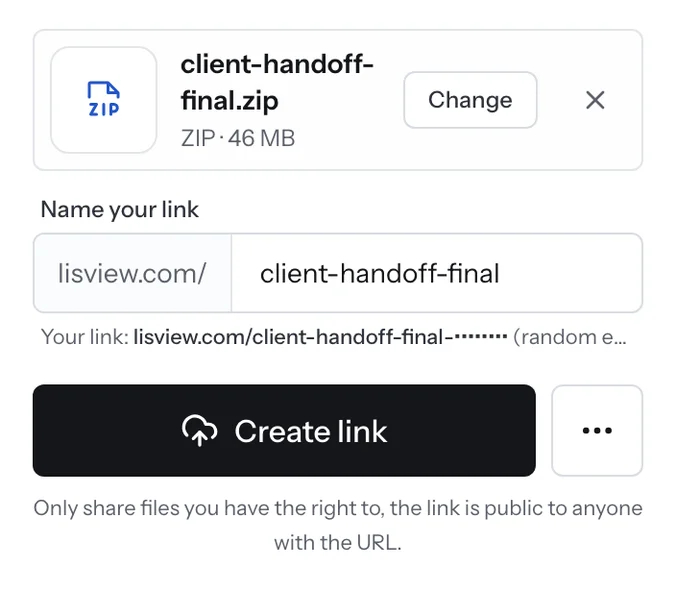
Upload the file
Drop the file into the box above, or pick several files to make one album link.
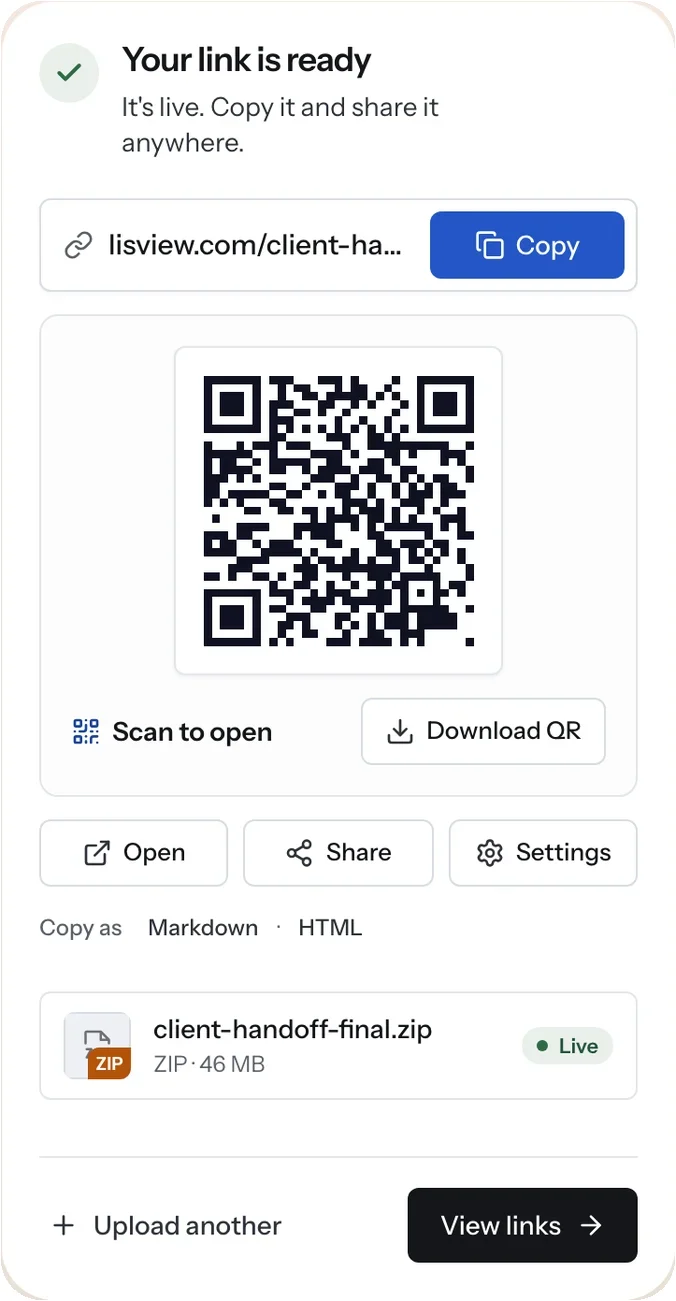
Copy the link
You get a short link and a QR code. Add a password if the file is confidential.
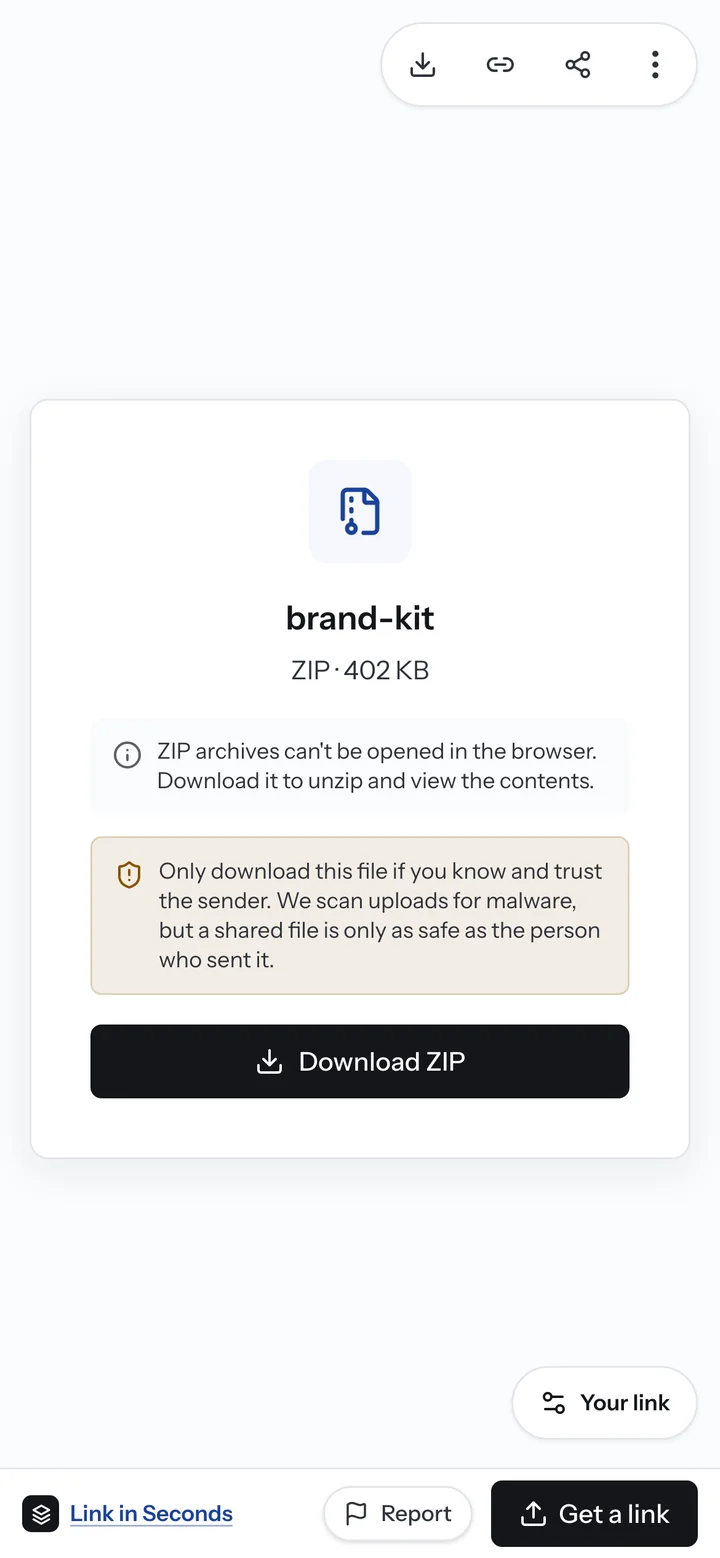
Paste it in Teams
Paste it into the chat or channel, and pin it if the team will need it again.
Así se ve
Why post a link instead of attaching the file?
It opens for people outside your organization
Clients and freelancers don't need a guest account or a Microsoft login. They tap the link and the file opens in their browser.
It doesn't use your OneDrive space
Teams puts chat attachments in your OneDrive, and Teams (free) has 5 GB for files. A link here uses your own storage, not your Microsoft quota.
You see when it was opened
Each open shows the day, device and country. You can also get an email when a client opens the file you posted.
The pinned link stays up to date
Upload a new version to the same link. The link pinned in the channel opens the latest file, so nobody grabs an old copy.
A link compared with attaching in Teams
Link in Seconds link
- Where the file is stored
- On the link
- Storage it uses
- Your plan here
- Opens for people outside
- Sí
- Needs a Microsoft account to open
- No
- See when it was opened
- Sí
- Password or end date
- Sí
Teams (work or school)
- Where the file is stored
- OneDrive or SharePoint
- Storage it uses
- Your company's quota
- Opens for people outside
- If your admin allows it
- Needs a Microsoft account to open
- Usually
- See when it was opened
- No
- Password or end date
- Depends on admin settings
Teams (free)
- Where the file is stored
- Your OneDrive
- Storage it uses
- 5 GB for files
- Opens for people outside
- If they're in the chat
- Needs a Microsoft account to open
- Usually
- See when it was opened
- No
- Password or end date
- No
Lo que dice la gente
“El panel de administración es increíblemente intuitivo y está pensado justo como razona un usuario. Mis alumnos coincidieron en que era fácil de usar y funcionaba perfecto.”
“La app es de verdad agradable y fácil de manejar. Tengo todos mis enlaces de apps en un solo lugar, mis capturas de la App Store y Play Store, y organizo mis imágenes y PDF en álbumes con etiquetas. Con tanto almacenamiento, todo vive aquí.”
“Manejo contratos, facturas y archivos legales para varias organizaciones distintas, así que casi todo lo que envío va protegido con contraseña. Link in Seconds lo hace sencillo, y tengo mi portafolio en un dominio propio. Es fácil de usar y de verdad económico.”
Todas las funciones de enlace en todos los planes
Los planes solo se diferencian en capacidad (enlaces, almacenamiento y tamaño de archivo) y en las páginas HTML y el alojamiento web.
Pro mensual
$9/mes
se cobra cada mes, cancela cuando quieras
- Enlaces ilimitados
- 100 GB de almacenamiento
- 10 GB por archivo
- Todas las funciones de enlace incluidas
- Páginas HTML y alojamiento web
Lifetime
$149$99una vez
un solo pago, sin renovaciones
- Enlaces ilimitados
- 200 GB de almacenamiento
- 10 GB por archivo
- Todas las funciones de enlace incluidas
- Páginas HTML y alojamiento web
Pro anual
$4.08/mes
se cobra $49 al año
- Ahorra un 55% frente al pago mensual
- Enlaces ilimitados
- 100 GB de almacenamiento
- 10 GB por archivo
- Todas las funciones de enlace incluidas
Prueba gratis de 7 días, luego $9/mes + impuestos. 0 $ hoy, cancela cuando quieras.O comparte archivos de hasta 5 MB gratis, sin tarjeta.
¿Vienes de WeTransfer, DocSend o tiiny.host? Mira las comparativas
Questions about sharing large files on Teams
Los detalles
What are the limits?
- Teams uploads go to SharePoint or OneDrive, which take files up to 250 GB, but the storage quota behind them usually runs out first. Teams (free) has 5 GB of cloud storage for files.
- Here you can upload files up to 10 GB each. Files up to 5 MB are free with no card. Small takes files up to 3 GB ($3/month) and Pro up to 10 GB ($9/month), both after a 7-day free trial.
- Links have no expiry date unless you set one. If a plan ends and your files are over the free 5 MB, links pause until you subscribe or delete files; nothing is deleted.
What is the file size limit in Teams?
Teams itself doesn't store files. Chat files go to the sender's OneDrive and channel files to the team's SharePoint site, which accept files up to 250 GB. In practice the storage quota runs out first, and Teams (free) gives 5 GB of cloud storage for documents.
File size limits for 14 appsWhy can't people outside my organization open my Teams file?
Because SharePoint and OneDrive sharing settings decide who can open it, and file sharing in external chats is off by default until an admin turns it on. A link here is a normal web address, so anyone you send it to can open it, and you can add a password.
Will people need to download the file?
No. Videos play, PDF show page by page, and Word and Excel files open as pages in the browser. If you only want people to look, turn off downloads.
View-only file sharingIs it safe to post a file link in Teams?
Anyone who has the link can open it, so treat it like the file itself. For confidential files add a password, an end date or a view limit, and turn the link off when the project ends. If your company requires files to stay in SharePoint, follow that rule.
How we keep uploads safeCan I tell who opened the file?
You see every open, with the time, device and country. To know who it was, turn on the email option, which asks for an email address before the file opens.
Ask for an email before openingWho shares big files on Teams this way?
- Agencies. Post final videos and decks in a client's Teams chat, and see when they were opened.
- Consultants. Share reports with client teams who can't accept files from outside their organization.
- Photographers. Send a corporate shoot as one album link the whole marketing team can open.
- Trainers. Post course recordings once, for staff in any organization, with no guest accounts.
Todo lo que puede hacer un enlace
- Nombre personalizado: Un enlace que la gente recuerda. Nombra el enlace tú mismo en vez de un código aleatorio. lisview.com/tu-nombre se ve limpio en un correo, una diapositiva o bajo un QR. Bloquea palabras reservadas y el enlace siempre funciona. Conserva el nombre y cambia el archivo detrás.
- Protección con contraseña: Bloquéalo para las personas correctas. Añade una contraseña y el archivo queda sellado hasta que alguien la escribe. El enlace se puede reenviar y solo se abre para quien la tiene. Con hash, nunca en texto plano. Se aplica al archivo, no solo a la página.
- Caducidad y límite de vistas: Enlaces que se cierran solos. Pon una fecha final o un tope de vistas y el enlace se detiene solo. Envía un presupuesto que caduca el viernes, o una vista previa que se cierra tras cinco aperturas. Por fecha, o tras N vistas, o ambos. Reábrelo cuando quieras quitando el límite.
- Código QR: Un código listo para imprimir en cada enlace. Cada enlace incluye un código QR nítido, en todos los planes. Ponlo en un menú, un folleto, una etiqueta o una caja, y abre el mismo enlace que si lo tocaran. Descárgalo como SVG o PNG, a cualquier tamaño. Cambia el archivo después, el código impreso sigue sirviendo.
- Seguimiento de vistas: Entérate en cuanto lo abran. Mira cuántas personas abrieron el enlace y cuándo, con todo el detalle: referencias, dispositivos, países y aperturas QR vs. directas. Incluido en cada plan. Un contador en tiempo real en cada enlace, sin configurar nada. Recibe un correo al abrirse por primera vez.
Share your file on Teams as a link
Upload the file, copy the link and paste it into any chat or channel.
Free up to 5 MB, no card. Bigger files: 7 days free, then from $3/mo. Cancel anytime. See plans