How to turn a PDF into a link (step by step, with screenshots)
Turn a PDF into a link
If you have ever emailed a PDF and heard nothing back, you know the problem. Attachments bounce over email size limits, get clipped by Gmail, or quietly land in spam. A link fixes all of that. Below is the full flow in Link in Seconds, one screenshot per step. Start to finish, it takes about ten seconds.
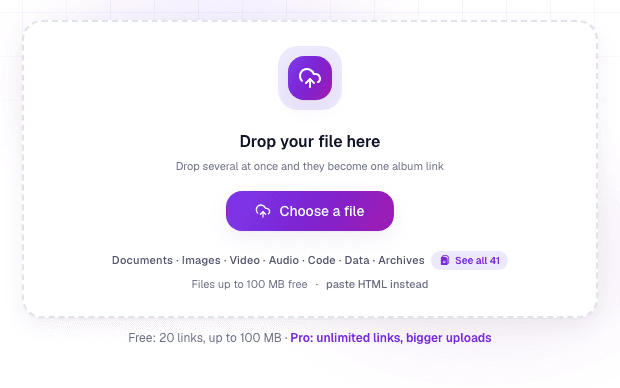
Step 1: Drop your PDF
Open the PDF to link converter page and drag your file onto the box, or click Choose a file and pick it. Nothing to install, no form to fill in. Files up to 250 MB are free.
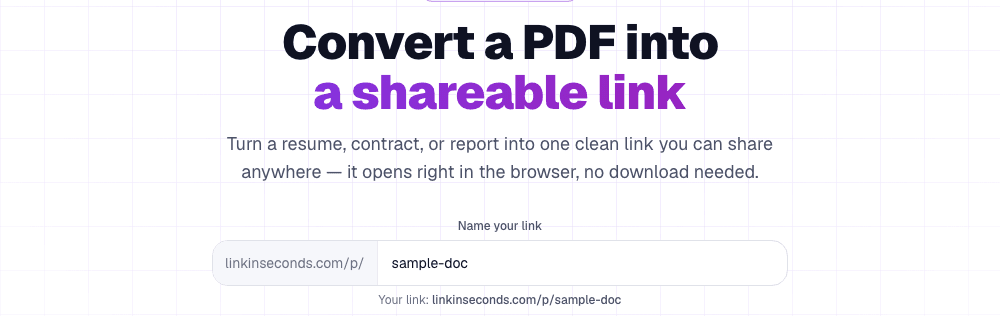
Step 2: Name your link
Give the link a short, readable name so the address says what it is, like lisview.com/proposal. Leave the default if you are in a hurry. This is the URL you are about to share.
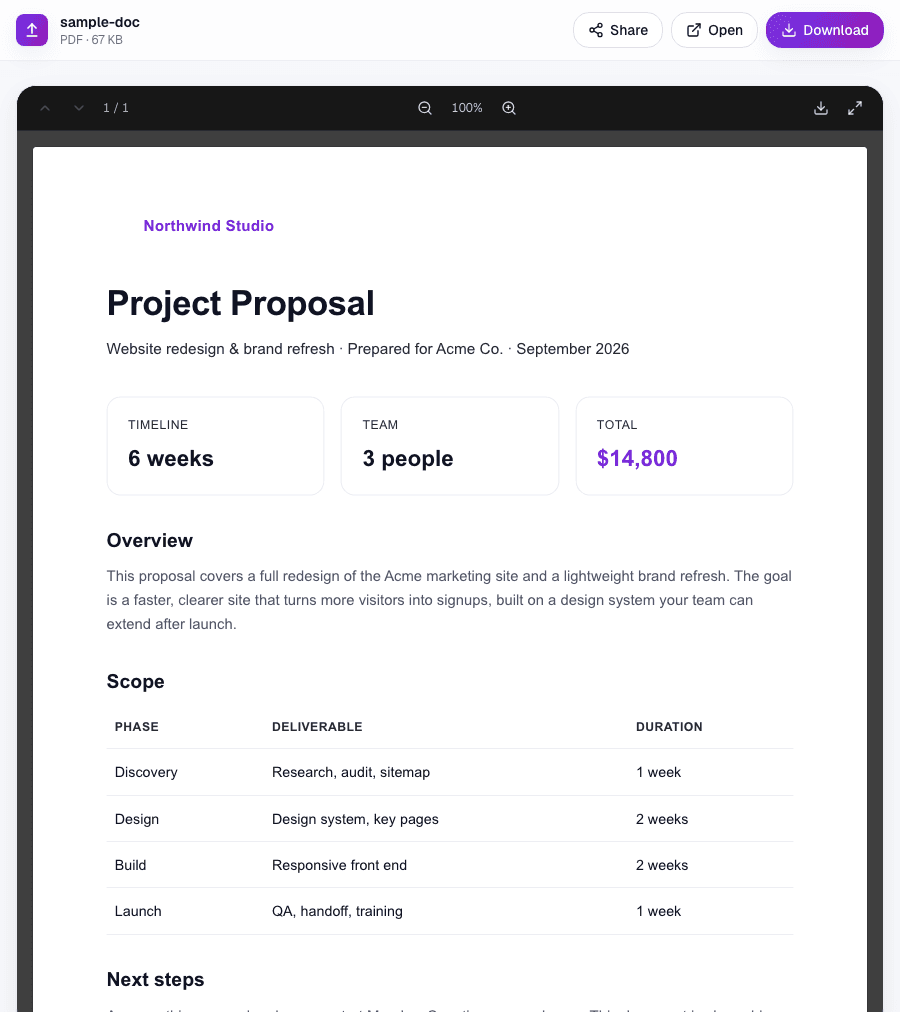
Step 3: Share the one link
Copy the link and paste it into an email, a chat, or a message. When someone opens it, the PDF loads right in their browser. They do not need an account, an app, or the right software to read it, and they can only download it if you allow that.
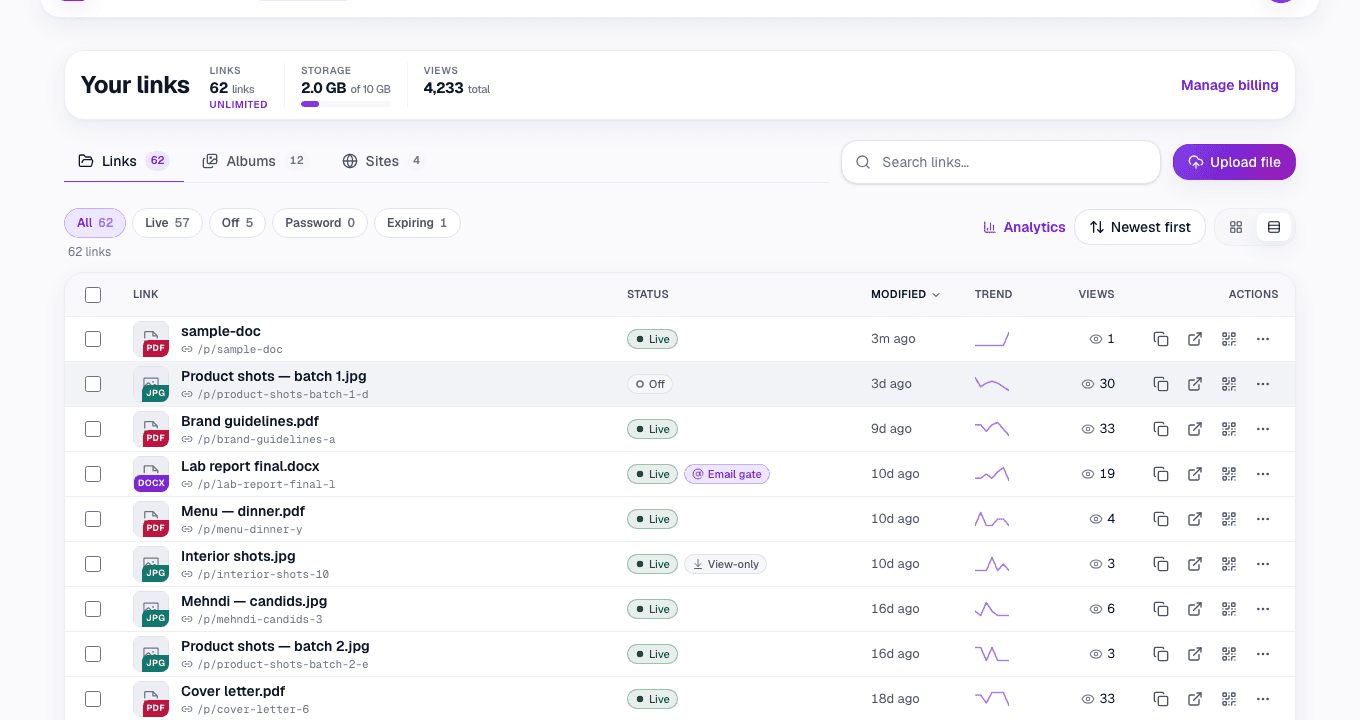
Step 4: See when it gets opened
Every link has a live view count, so you know whether your proposal or resume was actually read. From your dashboard you can add a password, set an expiry date, turn downloads off, or replace the file while keeping the same link.
Why a link beats a PDF attachment
- It never bounces over an inbox size limit, no matter how large the file is.
- One URL works everywhere: email, WhatsApp, LinkedIn, or a QR code on paper.
- You can update the file later and the link stays the same.
- You can see views, add a password, or set the link to expire.
- The reader gets a clean page, not a download they have to open in another app.
Common questions
Is it free?
Yes. Turning a PDF up to 250 MB into a link is free, and free links do not expire. Passwords, expiry dates and advanced analytics are free on every plan; Pro raises the size limit and storage. See pricing.
Does the person I send it to need an account?
No. The link opens the PDF directly in their browser. Nothing to sign in to, nothing to install.
Can I stop people downloading the PDF?
Yes. Turn on view-only and the reader can read the document in the browser, but the download button is hidden. There are honest limits, which we cover in share a PDF people can view but not download.
Can I turn the PDF into a QR code?
Yes. Every link includes a free QR code, so a scan opens your PDF. Handy for menus, flyers, and event handouts. More in turn a PDF into a QR code.
What if I have several PDFs?
Bundle them into one link instead of sending five attachments. See share multiple PDFs as one link.
Turn any file into a link in seconds
Upload a PDF, image, video, or ZIP and get a clean, trackable link with a QR code, free.
Try Link in Seconds →