How to share wedding and event photos as one beautiful album link
Share wedding photos as an album
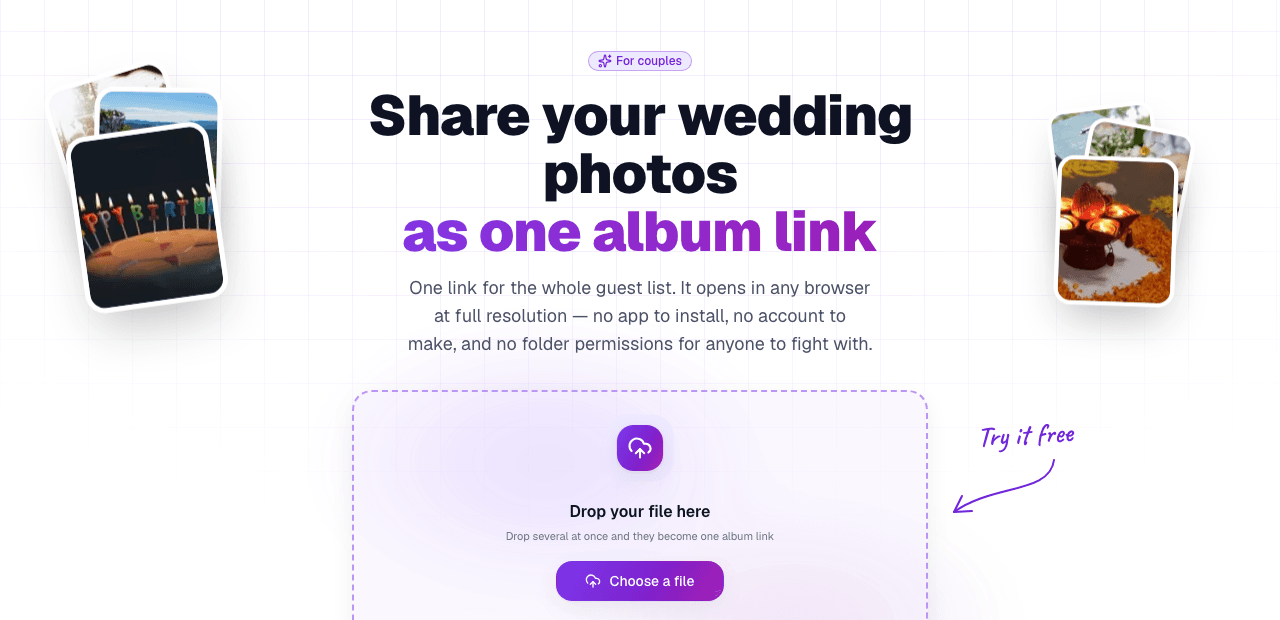
The ceremony is over, the photos are edited, and now 150 people who were at the wedding want to see them. You could attach ten files to an email and watch it bounce past the 25 MB cap. You could drop everything into a Google Drive folder and spend the next hour approving access requests from Aunt Linda's account she hasn't opened since 2019. Or you could put all the photos in one gallery link and text it to the group chat. They tap it. The whole album opens. No app, no account, no download. Here is how to do the latter.
Why the usual methods struggle with event photos
Sharing a batch of full-resolution photos to a large, mixed-tech group is surprisingly hard. Every common tool has its own specific failure mode:
- Email. The 20-25 MB attachment cap means five emails, each with a wall of numbered filenames. Half the family opens only the first one and thinks that's the whole gallery.
- WhatsApp and iMessage. Fast and familiar, but chat apps re-compress photos to save bandwidth. A 6 MB original arrives as a soft, blurry 800 KB shadow of itself. Completely unusable for printing or framing.
- Google Drive or iCloud shared folder. Works for the tech-savvy half of the guest list. The other half hits a "You need access, request access" wall, or an account sign-in prompt, and stops there. Grandparents bounce off these every time.
- Dropbox or another file-sync tool. Same problem, works great for people already on the platform, breaks for everyone else.
- Facebook or Instagram album. Not private, not full quality, and assumes everyone is on the platform. A lot of people are not.
The album link approach
Instead of wrangling attachments or a cloud drive, you put every photo into a single gallery link. You get one URL like linkinseconds.com/b/our-wedding that anyone taps to browse the full album in any browser, on any phone. No app to install, no account to create for the people viewing it, just a link that opens to a scrollable gallery.
Each photo is served at full resolution: what your camera captured is exactly what guests see, save, and print from. Nothing is run through a chat-app compression pass.
How to set it up
- Sign in to Link in Seconds. One tap with Google, no form to fill out, no card required.
- Select all your photos at once. In the upload card, pick the whole edited batch in one go (Shift-click or drag the folder). When you add more than one file they automatically bundle into an album link.
- Give it a name. On any plan you can set a custom slug (something like linkinseconds.com/b/emma-and-tom-2026) so the link is meaningful when you text it to 150 people. (The auto-generated link still works fine too.)
- Print the QR code (optional). Every album comes with a QR code. Print it on a thank-you card, a table sign, or a slide at the reception and guests scan straight to the gallery, no typing a URL.
- Share it anywhere. Text it in the group chat, put it in the wedding website, include it in the thank-you email. One link, and anyone who has it can open the gallery on any device.
Keeping the album online long-term
A wedding album is not something you want to disappear. Links here do not run on a timer today, what bounds the free plan is storage, not a countdown. Two ways to make sure the album is safe for good:
Option 1: Upgrade to Pro
Free links do not expire today either, so Pro is about room, not keeping the link alive. At $9/mo or $49/yr, a Pro plan gives you unlimited links, far more storage and up to 500 MB per file. (A password on the album and view analytics are already free on every plan.) The Lifetime option at $99 once is a single one-time payment that keeps Pro forever, no renewal to think about on your anniversary.
Option 2: Buy a one-time keepalive for just this album
If you only need this one album to stay online and do not want a full subscription, you can buy a keepalive for $8.99 for one year (1 GB) or $15.99 forever (3 GB). It is a one-off charge that raises that album's storage cap so you can add more photos later, and exempts it from any free-tier time limit. For details on how that works, see the one-time keepalive guide.
Who else this works for
- Birthday parties and family gatherings. Same principle, too many photos for email, too mixed a crowd for a Drive folder. One album link and grandparents open it the same way teenagers do.
- Engagement and anniversary shoots. Share the proofs as one gallery link instead of a portal the couple has to create an account for.
- Corporate events and conferences. Post-event photos go out as one link in the follow-up email, or as a QR code on the closing slide. Attendees find them in one tap without navigating a Drive folder.
- School plays, sports days, graduations. One link in the parent WhatsApp group, everyone sees all the photos at full quality, nobody is left out because they were on the wrong platform.
One honest caveat: who can see the link
A plain album link is viewable by anyone who has the URL. That is exactly what makes it so easy to share, but it also means if someone forwards the link, whoever receives it can open the gallery. For a family wedding album going to 150 guests, that is typically fine.
When the photos are more private, for example a boudoir shoot or a client gallery you want only the couple to see, put a password on the album. It is free on every plan and turns the link into a genuinely locked gallery: anyone without the password hits a prompt instead of the photos.
Frequently asked questions
Can I add more photos after sharing the link?
Yes. You can add to an existing album at any time and the same link shows the updated set. If the photographer sends a second batch later (or your cousin finds the photos they took), just add them to the same album. Everyone with the original link sees them automatically.
Do guests need to sign in to view the album?
No. Viewing requires no account. Only the person who created the album signed in (one Google tap). Guests just open the link.
Can guests download individual photos?
Yes, by default each photo has a download button. If you want the photos to be view-only (no download), turn off downloads in the album settings. It is free on every plan.
What photo formats are supported?
JPG, PNG, WebP, HEIC, and GIF all work. Most cameras and phones shoot JPG or HEIC; both display correctly in the album viewer.
If your batch is a mix of photos and other files (a video from the ceremony, a PDF menu from the venue), the share a folder of files with one link post explains how a mixed-format bucket works. And if you want to go further with the album-specific setup, how to share a whole photo album with one link covers the general album workflow in full detail.
Turn any file into a link in seconds
Upload a PDF, image, video, or ZIP and get a clean, trackable link with a QR code, free.
Try Link in Seconds →