How to share a PDF people can view but not download
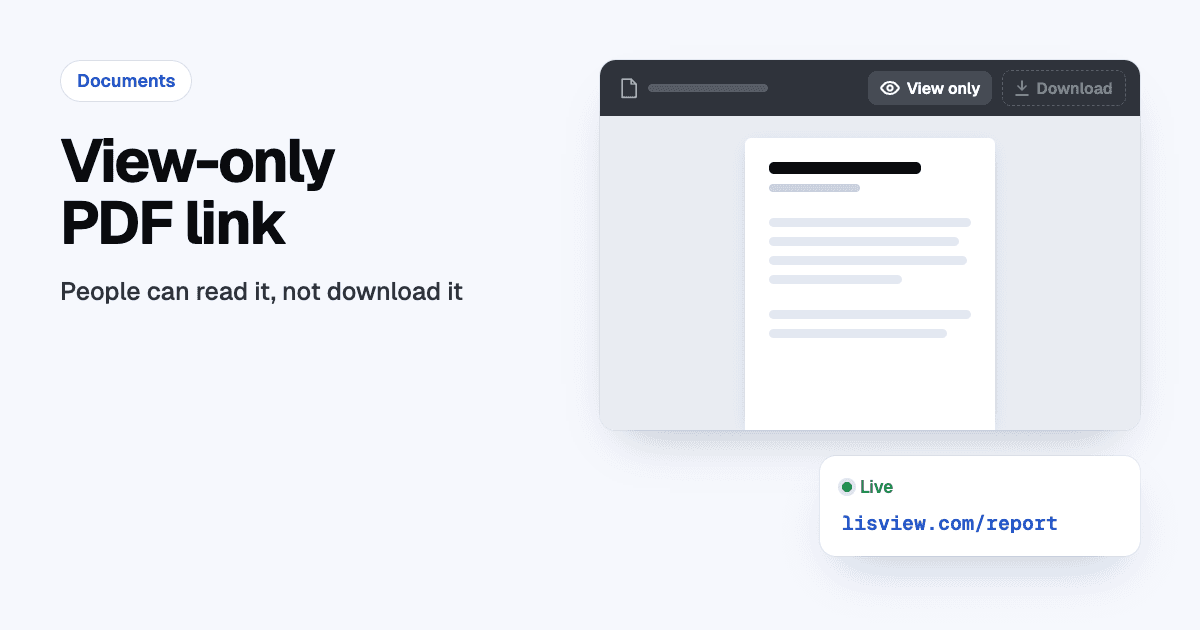
To share a PDF people can view but not download, send a view-only link. The PDF opens in the browser with the download button and the file's address hidden. It stops casual saving, not screenshots. Below: how five tools handle it, and what each one blocks.
Most ways of sharing a PDF online hand over a copy by default. Email it and it's downloaded the moment it arrives. Drop it in a shared folder and the download button is one click away. A view-only link changes that default. Tool facts below come from each vendor's own help pages, checked 22 November 2026.
Which tools let you share a PDF without allowing download?
Four of the five below have a switch for it, but two keep it for paid or work accounts. Adobe Acrobat documents no download switch.
| Tool | The setting | Which accounts | What it hides |
|---|---|---|---|
| Google Drive | Uncheck viewers in "People who can download, copy, print, and access" | Personal and work accounts | Download, print and copy buttons for viewers |
| Dropbox | Disable downloads on the link | Professional, Standard and higher (not Basic or Plus) | The download button; Dropbox says other ways to save still work |
| OneDrive | Block download on a view-only link | Work or school accounts only | Download, print and copy on the web |
| Adobe Acrobat | No download switch documented | Not documented | We could not confirm one on Adobe's pages |
| Link in Seconds | View-only mode on the link | Every plan | The download button and the raw file address |
In Google Drive
- Open the PDF's Share menu and click the settings gear.
- Under People who can download, copy, print, and access, uncheck viewers and commenters.
- Check the folder too: Google says a folder's permissions override the file's.
On Link in Seconds
- Drop in the PDF and choose View-only before you publish (or switch it later in Link settings).
- Copy the link and send it. It opens in any browser, with no account.
Read vs keep: two different jobs
Before you reach for view-only, decide which job you have. If the person needs the file to sign it, print it, file it or work from it, a view-only link annoys them, and they'll ask you to send it properly. View-only is for cases where looking is the whole point:
- A draft you want feedback on, without an old version floating around after you move on.
- A pitch deck or portfolio sample for people you haven't vetted yet.
- A priced quote or proposal you don't want forwarded with your numbers on it.
- A sample chapter or worksheet where the free peek should sell the full thing, not replace it.
How view-only works on Link in Seconds
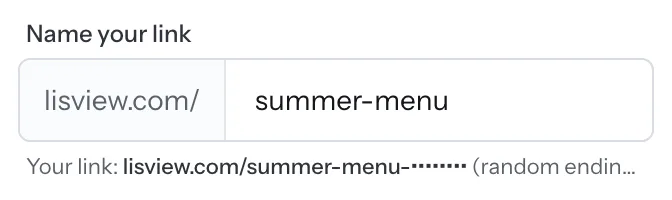
You upload the PDF like any other file and get a clean link like lisview.com/your-name that opens in the browser. For the plain version, see the PDF to link converter. The difference here is one setting, view-only mode. With it on, the link:
- Shows the PDF rendered in the browser, so people can read every page.
- Hides the download button that normally sits on the page.
- Hides the direct file address, so there is no raw PDF URL to copy and pass around.
View-only is on every plan. Every link also has a view counter and a QR code, and you can replace the file later while keeping the same address.
What view-only can and can't stop
View-only makes saving a file harder. It doesn't make it impossible. It removes the easy path, which for most everyday sharing is enough. Dropbox says the same about its own switch: it "doesn't prevent people from saving the content using other methods."
To be clear about what Link in Seconds does not do: there is no DRM, no encryption of the rendered page and no screenshot blocking. There is an optional watermark that stamps the viewer's email (or "Confidential") and the date across the PDF preview. It makes a leaked screenshot traceable; it doesn't prevent it.
When the content matters, layer controls and lower your exposure:
- Add a password (every plan), so only people you gave the code to can open the page. See how to password protect a PDF.
- Add an expiry date (every plan), so the link stops working when your window closes.
- Share only with people you trust to respect "please don't save this."
- If it can't leak at all (legal, medical, financial, unreleased), don't put it on a public link. Use a channel built for that.
Good uses vs wrong uses
Good uses for view-only
- Sharing a draft for comments without seeding stale copies.
- Showing a pitch deck or design concept to prospects and partners.
- Sending a priced quote you'd rather wasn't forwarded around a company.
- Offering a free sample chapter that points to the paid version.
- Letting someone read a policy, menu or handout on their phone from a QR code.
Wrong uses for view-only
- Anything the recipient needs a copy of: contracts to sign, invoices, deliverables they paid for.
- Confidential files where one leak is a real problem: password plus expiry at minimum, or no public link.
- Content you think view-only makes uncopyable. It doesn't.
Google Drive, Dropbox and OneDrive settings are quoted from their own help pages, checked 22 November 2026. We could not find a documented download switch for Adobe Acrobat links, so we don't claim one. Settings move, so confirm in your own account.
Quick answers
How do I share a PDF so it can't be downloaded?
Share it as a view-only link: the PDF opens in the browser with the download button and the file's own address hidden. In Google Drive, uncheck viewers under People who can download, copy, print, and access. On Link in Seconds, turn on view-only for the link.
Can view-only stop screenshots?
No. Anything a browser can show can be captured with a screenshot, a screen recording or a phone camera. View-only removes the easy download. A watermark with the viewer's email makes a leaked capture traceable, but it doesn't prevent it.
Does a password stop people downloading the PDF?
No. A password decides who can open the link. Once it is open, the PDF can still be downloaded unless downloads are also off. Use both: a password for who, view-only for what they can do.
Can I block PDF downloads on the free Dropbox plan?
No. Dropbox's help page lists Disable downloads on Professional, Essentials, Standard, Advanced, Business, Business Plus and Enterprise, not on Basic or Plus.
Why can people still download from my Google Drive folder?
Google says a folder's permissions override the settings on a file inside it. Turn off downloads for viewers on the shared folder too, or share the file on its own.
The bottom line
Use view-only when people should read a PDF without keeping a copy. It removes the one-click download and the raw file address, which stops most casual saving. For anything more sensitive, add a password and an expiry date, and share only with people you trust. If a browser can show it, someone can capture it.
Turn any file into a link in seconds
Upload a PDF, image, video, or ZIP and get a clean, trackable link with a QR code. Free up to 5 MB, no card. 7-day free trial, then $9/mo + tax. $0 today, cancel anytime.
Start free trial →